Cesium Chinese Website: http://cesiumcn.org/ | Fast Access in China: http://cesium.coinidea.com/
webpack is a popular and powerful tool for bundling JavaScript modules. It allows developers to structure code and assets in an intuitive way, and load different types of files as needed using simple require statements. During build time, it tracks code dependencies and bundles these modules into one or more bundles for the browser to load.
In the first half of this tutorial, we set up a simple web application using webpack from scratch, then cover the subsequent steps to integrate the Cesium npm module. If you like developing web applications with CesiumJS, webpack is a great choice. If you are new to Cesium and looking to learn how to build your first sample application, please check the Getting Started Tutorial.
In the second part, we will explore more advanced webpack configurations to optimize applications using CesiumJS.
The complete code and tips for optimizing a CesiumJS webpack application can be found in the official cesium-webpack-example.
Prerequisites
- Basic understanding of the command line, JavaScript, and web development.
- An IDE or code editor. Cesium team developers use Visual Studio Code, but a minimal code editor such as Sublime Text works perfectly fine as well.
- Node.js installed. We recommend using the latest LTS version.
Create a basic webpack app
In this section, we will cover how to set up a basic web application with webpack and a development server. If you already have an application set up and just want to add CesiumJS, skip to Add CesiumJS to a webpack app.
Initialize an app with npm
Create a new cesium-webpack directory for your app. Open the console, navigate to the new directory, and run the following command:
| |
Follow the prompts and fill in all the details about your application. Press enter to use the default values. This will create package.json.
Create the app code
Create a src directory for our application code. When we build the application, webpack will generate distribution files in the dist directory.
Create src/index.html and add the boilerplate HTML page code.
| |
Next, create an entry point for the application. This is the entry point where webpack looks for all JavaScript source code and dependencies to bundle.
Create src/index.js and add the following code:
| |
Install and configure webpack
Start by installing webpack:
| |
Configuration
Create webpack.config.js to define the webpack configuration object.
| |
context specifies the base path for the files. entry is used to specify the bundles. In this case, the entry point for the app bundle is src/index.js. webpack will output the bundled app.js to the dist folder.
Loaders
Webpack loads everything like a module. Use loaders to load CSS and other asset files. Install style-loader, css-loader, and url-loader.
| |
Add two module.rules in webpack.config.js: one for CSS files and another for other static files. For each rule, test defines the file types to load, and use specifies the list of loaders.
| |
Plugins
Define index.html and inject the bundle into this page using a webpack plugin called html-webpack-plugin.
| |
Reference the plugin in webpack.config.js, then inject it into plugins. Pass src/index.html as our template.
| |
The configuration file is a JavaScript file, so we can require other Node modules and perform operations.
Bundle the app
Use package.json to define scripts that can be called with npm. Add a build command.
| |
This script calls webpack and passes in the webpack.config.js configuration file.
We use local installations of webpack and webpack-dev-server in these scripts. This allows each project to use its own separate version, which is recommended by the webpack documentation. If you prefer to use a global version, install it globally with npm install –global webpack, and run it with the command webpack –config webpack.config.js.
When you run the build command: npm run build
You should see some output from webpack, starting with the following:
| |
The app.js bundle and index.html file will be output to the dist folder.
Run the development server
Use webpack-dev-server to serve the development build so we can see our app in action:
| |
Add a start script in package.json to run the development server. Set the configuration file via the –config flag. Use the –open flag to open the application in the browser when the command is executed.
| |
Tell the development server to serve files from the dist folder. Add this to the bottom of webpack.config.js.
| |
Finally, run the app:
| |
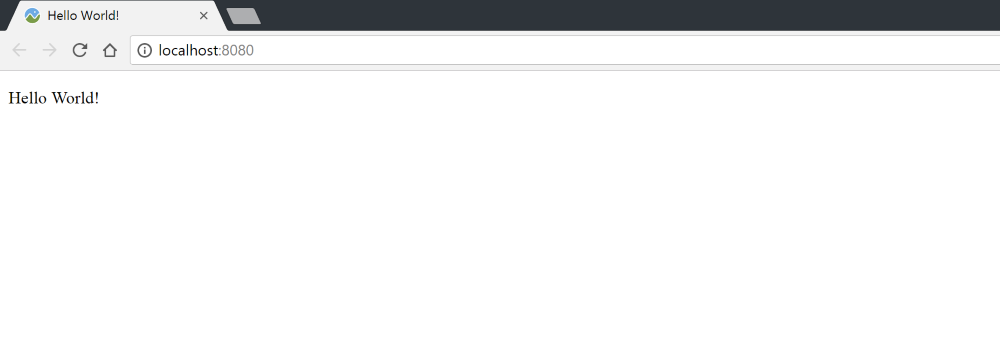

You should see your content rendered at localhost:8080, and see the “Hello World!” message when you open the browser console.
Add CesiumJS to a webpack app
Install CesiumJS
Install the cesium module from npm and add it to package.json.
Configure CesiumJS in webpack
CesiumJS is a large and complex library. In addition to JavaScript modules, it also includes static assets such as CSS, image, and JSON files. It includes web worker files to perform intensive computations in separate threads. Unlike traditional npm modules, CesiumJS does not define an entry point because the library can be used in many different ways. We need to configure some additional options for use with webpack.
First, define the location of CesiumJS. This tutorial is based on the source code, so webpack can include individual models and track dependencies. Alternatively, the built (minified or unminified) versions of CesiumJS can be used. However, these modules have already been combined and optimized, which gives us less flexibility.
Add the following code to the top of webpack.config.js:
| |
This tutorial uses the npm module for easy installation, but you can also clone the GitHub repository or download and extract a release version.
Add the following options to the configuration object to resolve some issues with how webpack compiles CesiumJS.
| |
- output.sourcePrefix: Adds a \t tab before each line to override the webpack default. CesiumJS has some multiline strings, so we need to override this default with an empty prefix ’’.
- amd.toUrlUndefined: true tells CesiumJS that the AMD webpack version used to evaluate require statements does not conform to the standard toUrl function.
- node.fs: ’empty’ resolves some third-party usage issues with the fs module, which is intended for use in a Node environment, not in a browser.
Add a cesium alias so we can reference it in our application code.
| |
Manage CesiumJS static files
Finally, ensure that static CesiumJS assets, widgets, and web worker files are properly served and loaded.
As part of the build process, use copy-webpack-plugin to copy static files to the dist directory.
| |
Require it at the top of the webpack.config.js file:
| |
And add it to the plugins array:
| |
This copies the Assets and Widgets directories as well as the built web worker scripts.
If you are using a fork of the CesiumJS repository, the Build folder will not exist. Run npm run release to generate the output folder. For more details, see the Cesium Build Guide.
Define an environment variable that tells CesiumJS the base URL for loading static files using the webpack DefinePlugin. The plugins array will now look like this:
| |
Require CesiumJS modules in our app
There are several ways to reference CesiumJS modules in our application. You can use CommonJS syntax or ES6 import statements.
You can import the entire CesiumJS library, or require only the specific modules you need. Importing individual modules will cause webpack to only compile those modules and their dependencies in the bundle, rather than the entire library.
CommonJS style require
Require all of CesiumJS:
| |
Require individual modules:
| |
ES6 style import
Import all of CesiumJS:
| |
Import individual modules:
| |
Requiring asset files
The principle behind webpack is that every file is treated as a module. This makes importing assets the same as including JavaScript. We told webpack how to load each type of file using loaders in the configuration, so we just need to call require.
| |
Hello World!
Create a new file, src/css/main.css, to style our application:
| |
Create a div for the CesiumJS Viewer in the index.html body. Replace Hello World!
| |
Remove the contents of index.js and include Cesium and our CSS files:
| |
Add a line of code to create the Viewer:
| |
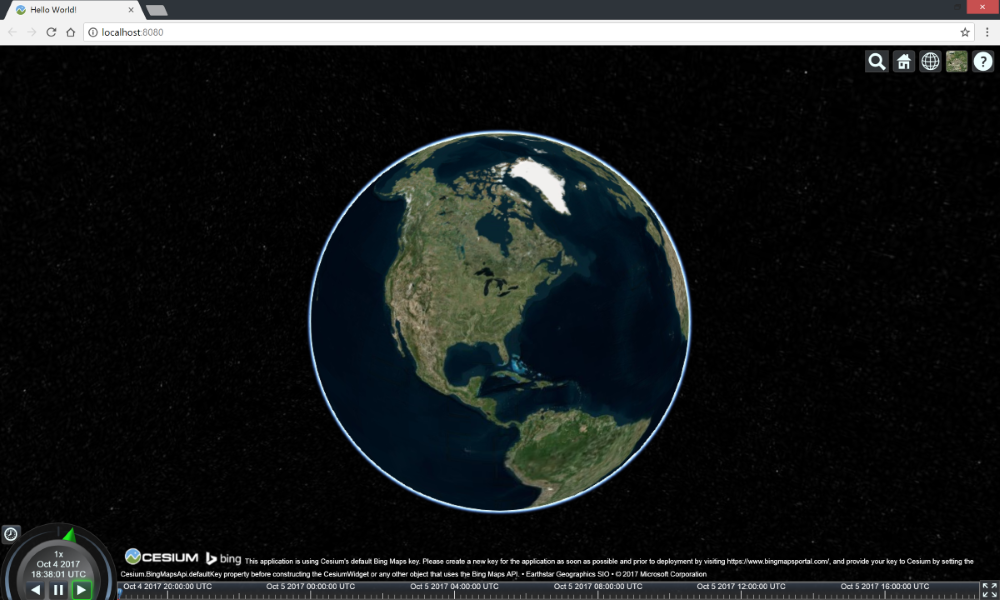
Run the app with npm start to view the Viewer in the browser.
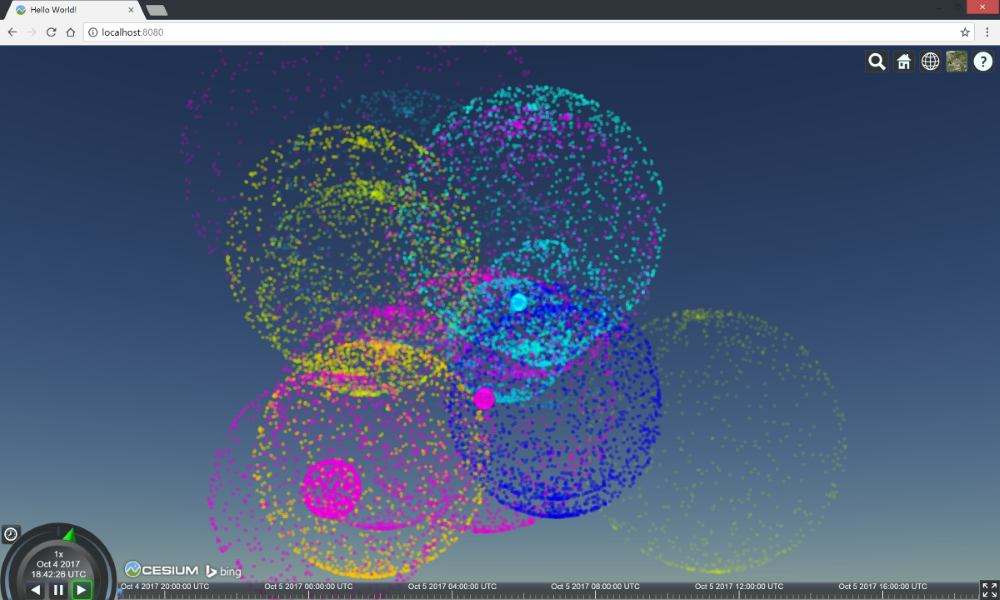
Copy and paste your favorite Sandcastle example. For instance, the Particle System Fireworks example makes for a great conclusion.
Advanced webpack configurations
webpack can further improve performance, reduce bundle size, and perform additional or complex build steps. Here, we will discuss some configuration options related to using the CesiumJS library.
A configuration for optimizing production Cesium webpack builds can be found in the repository example webpack.release.config.js.
Code splitting
By default, webpack bundles CesiumJS in the same chunk as our application, resulting in a large file. We can split CesiumJS into its own bundle and improve our application performance using the CommonChunksPlugin. If you end up creating multiple chunks for your application, they can all reference a common cesium chunk.
Add the plugin to the webpack.config.js file and specify the rules for splitting CesiumJS modules:
| |
Enable source maps
Source maps allow webpack to trace errors back to the original content. They provide more or less detailed debugging information in exchange for compilation speed. We recommend using the ’eval’ option.
| |
Source maps are not recommended for production builds.
Remove pragmas
Developer errors and warnings exist in the CesiumJS source code that have been removed from our minified release builds. Since there is no built-in webpack method to remove these warnings, we will use strip-pragma-loader.
Install the package:
| |
In module.rules, set debug to false and include the loader:
| |
Uglify and minify
Uglifying and minifying code allows for smaller file sizes in production. For a release build, CesiumJS uglifies JavaScript files and minifies CSS files.
Use uglifyjs-webpack-plugin to uglify the CesiumJS source code.
| |
Require it in the configuration file:
| |
Include it in the plugins list:
| |
Use the minimize option on css-loader to optimize CSS.
| |
Resources
The official cesium-webpack-example repository contains a minimal webpack configuration, the Hello World code from this tutorial, and instructions for optional code configurations.
For tutorials on CesiumJS features to include in a new application, see the Cesium Workshop Tutorial.
Explore examples in [Sandcastle] and check the CesiumJS Documentation.
To learn more about webpack, check out the webpack concepts, or read the documentation in depth.
Cesium Chinese Website QQ Group: 807482793
Cesium Chinese Website: http://cesiumcn.org/ | Fast Access in China: http://cesium.coinidea.com/