Cesium Chinese Website: http://cesiumcn.org/ | China Fast Access: http://cesium.coinidea.com/
Camera
The Camera in CesiumJS controls the view of the scene. There are many ways to manipulate the Camera, such as rotate, zoom, pan, and flyTo. CesiumJS has mouse and touch events for handling Camera interactions, as well as an API for programmatically manipulating the camera. Learn how to use the Camera API and customize Camera controls.
Default Camera Behavior
Open the Hello World example in Sandcastle to experience the default camera controls. The default operations are as follows:
English Version
| Mouse Action | 3D | 2D | Columbus View |
|---|
| Left click + drag | Rotate around the globe | Translate over the map | Translate over the map |
| Right click + drag | Zoom in and out | Zoom in and out | Zoom in and out |
| Middle wheel scrolling | Zoom in and out | Zoom in and out | Zoom in and out |
| Middle click + drag | Tilt the globe | No action | Tilt the map |
Chinese Version
| Mouse Action | 3D | 2D | Columbus View |
|---|
| Left click + drag | Rotate globe | Pan map | Pan map |
| Right click + drag | Zoom | Zoom | Zoom |
| Middle wheel | Zoom | Zoom | Zoom |
| Middle click + drag | Tilt globe | No action | Tilt globe |
Use the setView function to set the Camera’s position and orientation. The destination can be a Cartesian3 or Rectangle, and the orientation can be heading/pitch/roll or direction/up. Heading, pitch, and roll are defined in radians. Heading is the rotation from local north with positive angles increasing eastward. Pitch is the rotation from the local east-north plane. Positive pitch is above the plane. Negative pitch is below the plane. Roll is the first rotation applied around the local east axis.
1
2
3
4
5
6
7
8
| camera.setView({
destination: new Cesium.Cartesian3(x, y, z),
orientation: {
heading: headingAngle,
pitch: pitchAngle,
roll: rollAngle
}
});
|
1
2
3
4
5
6
7
8
| viewer.camera.setView({
destination: Cesium.Rectangle.fromDegrees(west, south, east, north),
orientation: {
heading: headingAngle,
pitch: pitchAngle,
roll: rollAngle
}
});
|
All of the above parameters are optional. If not specified, parameter values will default to the current Camera position and orientation.
Custom Camera Mouse or Keyboard Events
Create our own event handlers to control Camera orientation based on mouse direction, and keyboard keys to move the Camera forward, left, right, up, and down. Start by disabling the default event handlers. Add the following code after (`javascript var viewe=…`):
 1
 2
 3
 4
 5
 6
 7
 8
 9
10
11
12
13
14
| var scene = viewer.scene;
var canvas = viewer.canvas;
canvas.setAttribute('tabindex', '0'); // needed to put focus on the canvas
canvas.onclick = function() {
canvas.focus();
};
var ellipsoid = viewer.scene.globe.ellipsoid;
// disable the default event handlers
scene.screenSpaceCameraController.enableRotate = false;
scene.screenSpaceCameraController.enableTranslate = false;
scene.screenSpaceCameraController.enableZoom = false;
scene.screenSpaceCameraController.enableTilt = false;
scene.screenSpaceCameraController.enableLook = false;
|
Create variables to record the current mouse position, then flag and track Camera movement:
1
2
3
4
5
6
7
8
9
10
11
| var startMousePosition;
var mousePosition;
var flags = {
looking: false,
moveForward: false,
moveBackward: false,
moveUp: false,
moveDown: false,
moveLeft: false,
moveRight: false
};
|
Add an event handler to set the flag and record the current mouse position when the left mouse button is clicked:
1
2
3
4
5
6
7
8
9
10
11
12
13
14
| var handler = new Cesium.ScreenSpaceEventHandler(canvas);
handler.setInputAction(function(movement) {
flags.looking = true;
mousePosition = startMousePosition = Cesium.Cartesian3.clone(movement.position);
}, Cesium.ScreenSpaceEventType.LEFT_DOWN);
handler.setInputAction(function(movement) {
mousePosition = movement.endPosition;
}, Cesium.ScreenSpaceEventType.MOUSE_MOVE);
handler.setInputAction(function(position) {
flags.looking = false;
}, Cesium.ScreenSpaceEventType.LEFT_UP);
|
Create keyboard event handlers to toggle Camera movement flags. We set flags for the following keys and behaviors:
- w Camera moves forward.
- s Camera moves backward.
- a Camera moves left.
- d Camera moves right.
- q Camera moves up.
- e Camera moves down.
1
2
3
4
5
6
7
8
9
10
11
12
13
14
15
16
17
18
19
20
21
22
23
24
25
26
27
28
29
30
31
32
| function getFlagForKeyCode(keyCode) {
switch (keyCode) {
case 'W'.charCodeAt(0):
return 'moveForward';
case 'S'.charCodeAt(0):
return 'moveBackward';
case 'Q'.charCodeAt(0):
return 'moveUp';
case 'E'.charCodeAt(0):
return 'moveDown';
case 'D'.charCodeAt(0):
return 'moveRight';
case 'A'.charCodeAt(0):
return 'moveLeft';
default:
return undefined;
}
}
document.addEventListener('keydown', function(e) {
var flagName = getFlagForKeyCode(e.keyCode);
if (typeof flagName !== 'undefined') {
flags[flagName] = true;
}
}, false);
document.addEventListener('keyup', function(e) {
var flagName = getFlagForKeyCode(e.keyCode);
if (typeof flagName !== 'undefined') {
flags[flagName] = false;
}
}, false);
|
Now when a flag indicates an event has occurred (is true), we update the camera. We add an onTick listener to the clock:
1
2
3
| viewer.clock.onTick.addEventListener(function(clock) {
var camera = viewer.camera;
});
|
Next, we make the Camera point in the direction the mouse is pointing. Add the following code to the event listener function after the variable declaration:
1
2
3
4
5
6
7
8
9
10
11
12
| if (flags.looking) {
var width = canvas.clientWidth;
var height = canvas.clientHeight;
// Coordinate (0.0, 0.0) will be where the mouse was clicked.
var x = (mousePosition.x - startMousePosition.x) / width;
var y = -(mousePosition.y - startMousePosition.y) / height;
var lookFactor = 0.05;
camera.lookRight(x * lookFactor);
camera.lookUp(y * lookFactor);
}
|
lookRight and lookUp only require an angle parameter representing the rotation angle. We convert the mouse coordinates to the range (-1.0, 1.0), with coordinate (0.0, 0.0) at the center of the canvas. The distance of the mouse from the center determines the rotation speed. Positions closer to the center move the Camera slower, while positions farther from the center move the Camera faster.
Finally, add code to move the Camera position. Then add the following code to the event handler function:
1
2
3
4
5
6
7
8
9
10
11
12
13
14
15
16
17
18
19
20
21
22
| // Change movement speed based on the distance of the camera to the surface of the ellipsoid.
var cameraHeight = ellipsoid.cartesianToCartographic(camera.position).height;
var moveRate = cameraHeight / 100.0;
if (flags.moveForward) {
camera.moveForward(moveRate);
}
if (flags.moveBackward) {
camera.moveBackward(moveRate);
}
if (flags.moveUp) {
camera.moveUp(moveRate);
}
if (flags.moveDown) {
camera.moveDown(moveRate);
}
if (flags.moveLeft) {
camera.moveLeft(moveRate);
}
if (flags.moveRight) {
camera.moveRight(moveRate);
}
|
The moveForward, moveBackward, moveUp, moveDown, moveLeft, and moveRight methods only require a distance parameter (in meters) for moving the Camera. When each key is pressed, the Camera moves a fixed distance along the ellipsoid surface. The closer the Camera is to the ground, the slower it moves.
Complete code:
1
2
3
4
5
6
7
8
9
10
11
12
13
14
15
16
17
18
19
20
21
22
23
24
25
26
27
28
29
30
31
32
33
34
35
36
37
38
39
40
41
42
43
44
45
46
47
48
49
50
51
52
53
54
55
56
57
58
59
60
61
62
63
64
65
66
67
68
69
70
71
72
73
74
75
76
77
78
79
80
81
82
83
84
85
86
87
88
89
90
91
92
93
94
95
96
97
98
99
100
101
102
103
104
105
106
107
108
109
110
111
112
113
114
115
116
| var viewer = new Cesium.Viewer('cesiumContainer');
var scene = viewer.scene;
var canvas = viewer.canvas;
canvas.setAttribute('tabindex', '0'); // needed to put focus on the canvas
canvas.onclick = function() {
    canvas.focus();
};
var ellipsoid = viewer.scene.globe.ellipsoid;

// disable the default event handlers
scene.screenSpaceCameraController.enableRotate = false;
scene.screenSpaceCameraController.enableTranslate = false;
scene.screenSpaceCameraController.enableZoom = false;
scene.screenSpaceCameraController.enableTilt = false;
scene.screenSpaceCameraController.enableLook = false;
var startMousePosition;
var mousePosition;
var flags = {
looking : false,
moveForward : false,
moveBackward : false,
moveUp : false,
moveDown : false,
moveLeft : false,
moveRight : false
};
var handler = new Cesium.ScreenSpaceEventHandler(canvas);

handler.setInputAction(function(movement) {
    flags.looking = true;
    mousePosition = startMousePosition = Cesium.Cartesian3.clone(movement.position);
}, Cesium.ScreenSpaceEventType.LEFT_DOWN);

handler.setInputAction(function(movement) {
    mousePosition = movement.endPosition;
}, Cesium.ScreenSpaceEventType.MOUSE_MOVE);

handler.setInputAction(function(position) {
    flags.looking = false;
}, Cesium.ScreenSpaceEventType.LEFT_UP);
function getFlagForKeyCode(keyCode) {
    switch (keyCode) {
        case 'W'.charCodeAt(0):
            return 'moveForward';
        case 'S'.charCodeAt(0):
            return 'moveBackward';
        case 'Q'.charCodeAt(0):
            return 'moveUp';
        case 'E'.charCodeAt(0):
            return 'moveDown';
        case 'D'.charCodeAt(0):
            return 'moveRight';
        case 'A'.charCodeAt(0):
            return 'moveLeft';
        default:
            return undefined;
    }
}

document.addEventListener('keydown', function(e) {
    var flagName = getFlagForKeyCode(e.keyCode);
    if (typeof flagName !== 'undefined') {
        flags[flagName] = true;
    }
}, false);

document.addEventListener('keyup', function(e) {
    var flagName = getFlagForKeyCode(e.keyCode);
    if (typeof flagName !== 'undefined') {
        flags[flagName] = false;
    }
}, false);
viewer.clock.onTick.addEventListener(function(clock) {
var camera = viewer.camera;
if (flags.looking) {
var width = canvas.clientWidth;
var height = canvas.clientHeight;
// Coordinate (0.0, 0.0) will be where the mouse was clicked.
var x = (mousePosition.x - startMousePosition.x) / width;
var y = -(mousePosition.y - startMousePosition.y) / height;
var lookFactor = 0.05;
camera.lookRight(x * lookFactor);
camera.lookUp(y * lookFactor);
}
// Change movement speed based on the distance of the camera to the surface of the ellipsoid.
var cameraHeight = ellipsoid.cartesianToCartographic(camera.position).height;
var moveRate = cameraHeight / 100.0;
if (flags.moveForward) {
camera.moveForward(moveRate);
}
if (flags.moveBackward) {
camera.moveBackward(moveRate);
}
if (flags.moveUp) {
camera.moveUp(moveRate);
}
if (flags.moveDown) {
camera.moveDown(moveRate);
}
if (flags.moveLeft) {
camera.moveLeft(moveRate);
}
if (flags.moveRight) {
camera.moveRight(moveRate);
}
});
|
Full code available here)
Camera
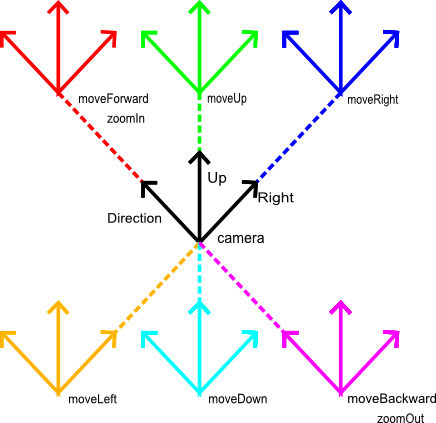
Camera represents the state of the Camera’s current position, orientation, reference frame, and view frustum. The Camera vectors above are orthogonal in each frame. The *move*_ and _zoom** functions translate the Camera’s position along its direction or a specified direction vector. The direction remains fixed.
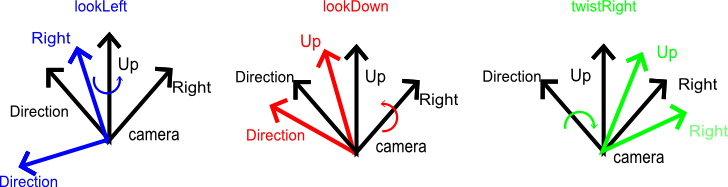
The *look*_ and _twist** functions rotate the Camera’s direction, such as up or right vectors. The position remains fixed.
The *rotate** functions rotate the position and direction based on a given vector.

Functions set the Camera position and orientation given an extent or position and target. For example:
1
2
3
4
5
6
| var west = Cesium.Math.toRadians(-77.0);
var south = Cesium.Math.toRadians(38.0);
var east = Cesium.Math.toRadians(-72.0);
var north = Cesium.Math.toRadians(42.0);
var extent = new Cesium.Extent(west, south, east, north);
camera.viewExtent(extent, Cesium.Ellipsoid.WGS84);
|
Create a ray variable by picking the Camera’s position through a pixel. This method can be used for picking, for example:
1
2
3
| // find intersection of the pixel picked and an ellipsoid
var ray = camera.getPickRay(mousePosition);
var intersection = Cesium.IntersectionTests.rayEllipsoid(ray, Cesium.Ellipsoid.WGS84);
|
Screen space camera controller
ScreenSpaceCameraController converts user input (such as mouse and touch) from window coordinates to Camera movement. It contains properties for enabling and disabling different types of input, modifying the amount of inertia, and minimum and maximum zoom distances.
Resources
View camera example code in Sandcastle:
- Camera Tutorial
- Camera
API documentation:
- Camera
- ScreenSpaceCameraController
Cesium Chinese Website QQ Group: 807482793
Cesium Chinese Website: http://cesiumcn.org/ | China Fast Access: http://cesium.coinidea.com/