Cesium Chinese Website: http://cesiumcn.org/ | China Fast Access: http://cesium.coinidea.com/
Entity Features in Viewer
Let’s look at the functions that Viewer provides for manipulating entities.
Selection and Description
Clicking an entity in the Viewer will display a SelectionIndicator widget at the entity’s location, providing an InfoBox for presenting more information. We can set name to define the title of the InfoBox. We can also provide the Entity.description property in HTML format.
| |

All HTML displayed in the InfoBox is sandboxed. This prevents external data sources from injecting malicious content into the Cesium application. To run JavaScript or browser plugins within the description, access the sandboxed iframe via the viewer.infoBox.frame property. Refer to this article for more information on controlling iframe sandboxing.
Camera Controls
Use the viewer.zoomTo command to view a specific Entity. There is also a viewer.flyTo method for performing animated Camera flights to an Entity. Both methods can be passed an Entity, EntityCollection, DataSource, or an array of entities.
Either method will calculate the view for all provided entities. By default, the Camera faces north and looks down at a 45-degree angle. Customize this by passing in a HeadingPitchRange.
| |

zoomTo and flyTo are both asynchronous functions; that is, they are not guaranteed to complete before returning. For example, flying to an Entity happens over many animation frames. Both functions return Promises that can be used to schedule actions to perform after the flight or zoom completes. Replace zoomTo in the example with the following code snippet. This flies to Wyoming and selects it after the flight ends.
| |
The result parameter passed to the callback function will be true if the flight completed successfully; false if the flight was cancelled – that is, the user initiated another flight or zoom before this one completed; or if the target had no corresponding visualization, i.e., nothing to zoom to.
Sometimes, especially when working with time-dynamic data, we want the Camera to focus on and follow an entity rather than the center of the Earth. This can be accomplished by setting viewer.trackedEntity. Tracking an entity requires setting a position.
| |
To stop tracking, set viewer.trackedEntity to undefined or double-click away from the entity. Calling zoomTo or flyTo will also cancel tracking.
Managing Entities
EntityCollection is an associative array for managing and monitoring a group of entities. viewer.entities is an EntityCollection. EntityCollection includes methods for managing entities such as add, remove, and removeAll.
Sometimes we need to update entities we previously created. All entity instances have a unique id that can be used to retrieve entities from the collection. We can assign an ID to an entity, otherwise one will be automatically generated.
| |
Use getById to retrieve an entity. If no entity with the provided ID exists, undefined is returned.
| |
To get an entity or create a new one if it doesn’t exist, use getOrCreateEntity.
| |
Manually create a new entity and use add to add it to the collection. This method will throw an exception if an entity with the same id already exists in the collection.
| |
EntityCollection emits events using the CollectionChanged event. Listeners are notified when entities are added, removed, or updated in the collection.
Use the [Geometry Showcase] (https://cesiumjs.org/Cesium/Build/Apps/Sandcastle/index.html?src=Geometry and Appearances.html&label=Showcases) example in Sandcastle. Paste the following code after the line that creates the viewer.
| |
When running the example, you should see about 65 messages in the console, one for each call to viewer.entities.add.
When updating a large number of entities at once, it is more performant to queue the updates and send a single event at the end. This allows Cesium to process the required changes in a single pass. At the end of the example, call viewer.entities.suspendEvents before viewer.entities.add, and call viewer.entities.resumeEvents after. When running the demo again, we now get a single event containing all 65 entities. These calls are reference-counted, so multiple suspend and resume calls can be nested.
Picking
Picking (clicking to select an object) is an area where we need brief interaction with the base API. Use scene.pick and scene.drillPick to retrieve entities.
| |
Points, Billboards, and Labels
Create graphical points or labels by setting position, point, and label. For example, place a point at our favorite sports team’s home stadium.
| |

By default, labels are horizontally and vertically centered. Since the label and point share the same position, they overlap on screen. To avoid this, specify the label origin as VerticalOrigin.BOTTOM and set the pixel offset to (0, -9). Replace the point with a billboard, which is a marker that always faces the user.
| |
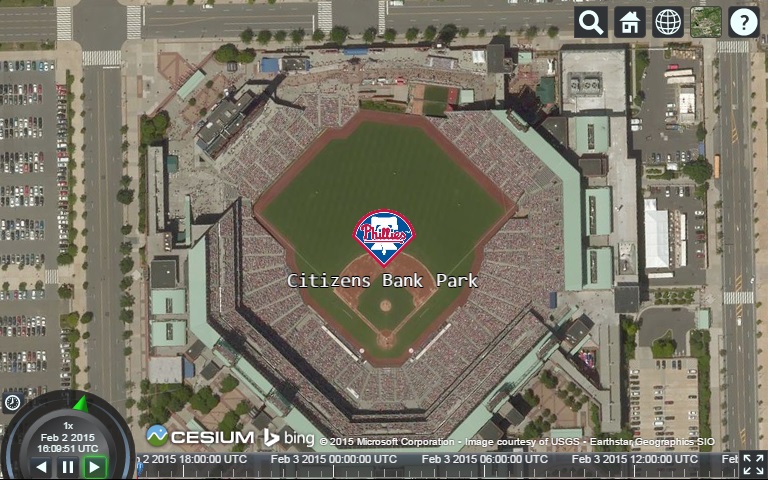
For more customization options, see the Sandcastle Labels and Billboards examples.
3D Models
CesiumJS supports creating 3D models via glTF (runtime asset format). You can find example models in the 3D models Sandcastle.
Set a position and URI to a glTF model to create a model entity.
| |
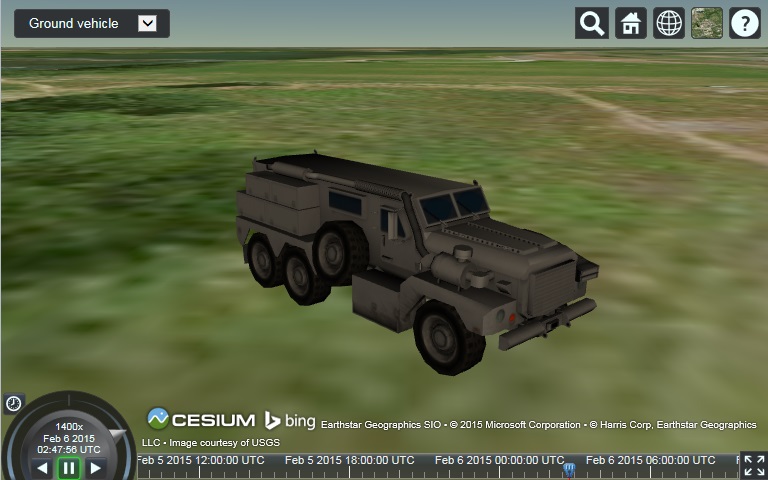
By default, the model is upright and faces east. Control the model’s orientation by specifying a Quaternion for the Entity.orientation property. This controls the model’s heading, pitch, and roll.
| |
For more advanced model features, see the 3D Models tutorial. If you create your own models, be sure to check our post on glTF Tips for Artists.
The Property System
All values we define for entities are stored as property objects. For example, see the value of Wyoming’s outline:
| |
outline is an instance of ConstantProperty. This tutorial uses a shorthand called implicit property conversion, which automatically takes raw values and creates the corresponding Property under the hood. Without this shorthand, we would have to write a longer version of the initial example:
| |
Properties are used because the Entity API can represent not only constant values but also values that change over time. See the Callback Property and Interpolation Sandcastle examples for some time-dynamic properties.
Resources
For examples on how to style and create entities using GeoJSON and CZML, see the Cesium Workshop Tutorial.
Cesium Chinese Website QQ Group: 807482793
Cesium Chinese Website: http://cesiumcn.org/ | China Fast Access: http://cesium.coinidea.com/