Cesium Chinese website: http://cesiumcn.org/ | Fast domestic access: http://cesium.coinidea.com/
This tutorial will teach you how to convert, load, and use 3D models in Cesium through the Primitive API. If you are new to Cesium, you may want to read the 3D models section of the Spatial Data Visualization Tutorial, referred to as “Spatial Data Visualization” in this tutorial series.
Cesium supports 3D models, including keyframe animations, skinning, and individual node picking, using glTF — an emerging industry-standard format developed by the Khronos Group (the consortium behind WebGL and COLLADA) for 3D models on the web. Cesium also provides a web-based tool to convert COLLADA models to glTF for optimized use with Cesium.
Quick Start
Cesium includes several ready-to-use binary glTF models:
- An airplane with animated propellers
- A ground vehicle with animated wheels
- A character with skinned walk cycle
- A hot air balloon
- A milk truck (also available in Draco-compressed format)
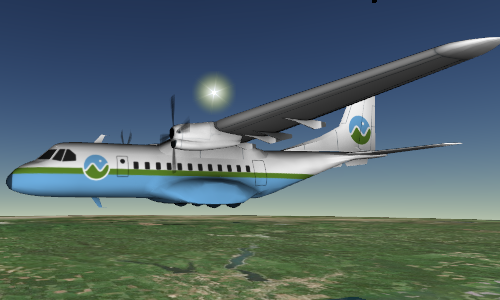
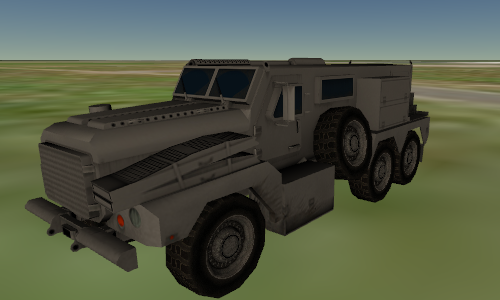
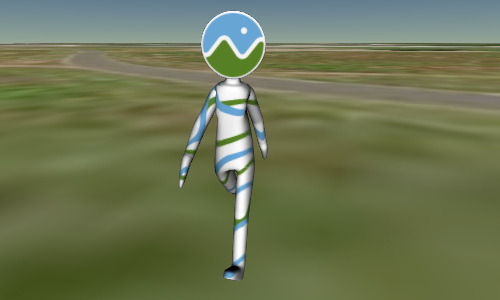
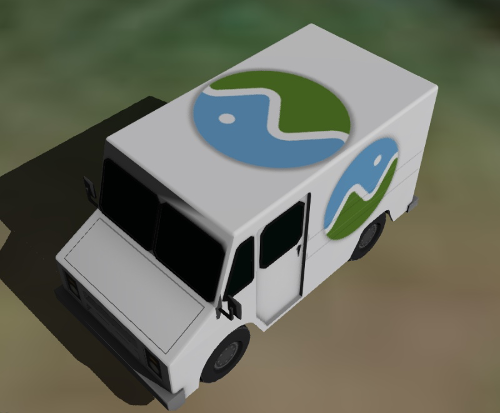
These models each have their own directory in Apps/SampleData/models. Most will include the original COLLADA file (.dae), glTF file (.gltf), and/or binary glTF file (.glb). The original COLLADA file is not needed for use in a Cesium application.
Let’s write code to load these models. Open Sandcastle’s Hello World example. Below line 4 var viewer=…, add a scene variable.
| |
Next, load the ground vehicle model using Cesium.Model from glTF by adding the following code.
| |
Press F8, then use the geocoder tool in the upper right corner to zoom to Exton, PA.
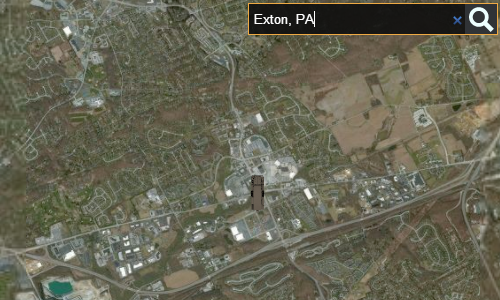
We are now looking directly at the ground vehicle. We can right-click drag to zoom in, and middle-click drag to tilt the view.
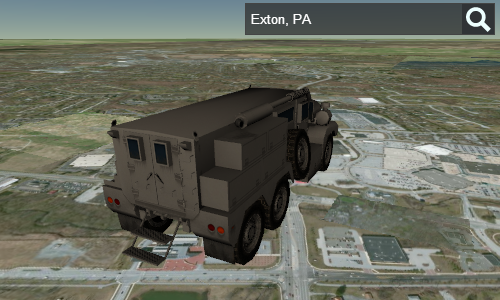
Cesium.Model.fromGltf asynchronously loads a glTF model, including any external files, and renders the model once it is fully loaded, resolving the readyPromise. Only the URL of the .gltf file is required, which in this case is ../../../../Apps/SampleData/models/GroundVehicle/GroundVehicle.glb.
scale is provided as an optional parameter to fromGltf to enlarge the model. Many real-sized models can also appear very small. So using a larger scale value for the first test of a model is helpful, such as 200000.0, as shown below:
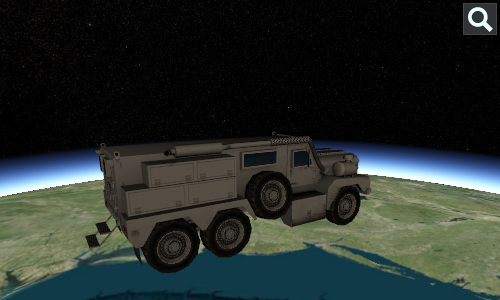
modelMatrix is also provided to fromGltf to position and rotate the model. This creates a local coordinate system for the model. Here, Cesium.Transforms.eastNorthUpToFixedFrame is used to create a local East-North-Up coordinate system with its origin at longitude -75.62898254394531 degrees, latitude 40.02804946899414 degrees. The model’s modelMatrix property can be changed at any time to move the model.
To visualize the coordinate system, use the Cesium Inspector by adding the following code anywhere below line 4 var viewer=…:
| |
Press F8, and the inspector interface will appear in the upper left. Expand Primitives, click Pick a Primitive, click on the ground vehicle model, and then check show reference frame.
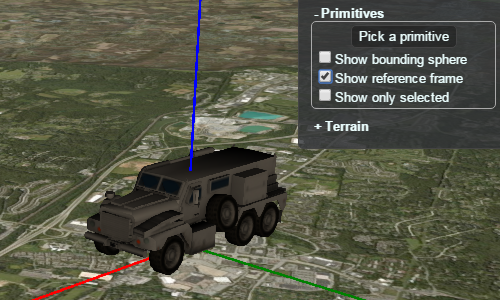
Here: the x-axis (East) is red, the y-axis (North) is green, and the z-axis (Up) is blue.
We can use the same code to load the airplane or character model by simply changing the URL passed to fromGltf to “../../../../Apps/SampleData/models/CesiumAir/Cesium-Air.glb” or “../../../../Apps/SampleData/models/CesiumMan/Cesium-Man.glb”. See the reference documentation for Cesium.Model.fromGltf for all available options.
Animations
Each of these models has built-in animations created by an artist (for example, an artist defines several key poses to create an animation), and Cesium interpolates them at runtime to create smooth animations.
To play animations, add the following code after the call to Cesium.Model.fromGltf.
| |
Since animations are stored in the glTF model, we need to wait for the readyPromise to resolve before accessing them. addAll is used to play all animations in the model. Cesium.ModelAnimationLoop.REPEAT loops the animation until it is removed from the activeAnimations collection. To play a specific animation, use add instead, providing the animation’s id (the glTF JSON property name).
In addition to the loop option, addAll and add provide many options to control the animation’s start and stop time, speed, and direction. For example, the following animation runs at half speed (relative to the Cesium clock) and in reverse.
| |
add returns a ModelAnimation object (addAll returns an array of these objects) that includes events for when the animation starts, stops, and updates each frame. For example, this allows starting one animation relative to another. See the API documentation for start, stop, and update events.
Animations are synchronized with the Cesium clock, so to see them, press play on the play widget. You can use the timeline and play widget to increase, decrease, and reverse the animation speed.
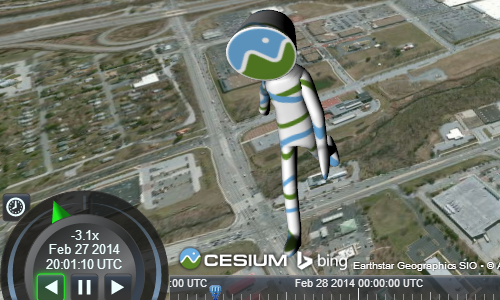
To configure the application to automatically play animations, initialize the viewer as follows:
| |
Picking
As with all Cesium primitives, Scene.pick will return a model as part of its result if one is picked. Additionally, the ids (JSON property names) of the glTF node and glTF mesh are returned, enabling precise picking of different model parts. The following example displays the node and mesh names under the mouse cursor in the console window.
| |
Converting COLLADA to glTF
To fully convert COLLADA models to glTF format for use with Cesium, you can use the web-based COLLADA-to-glTF converter. This tool can convert .dae files and image files into a .gltf file with embedded images.
Troubleshooting
If you encounter problems loading a 3D model in Cesium, first determine where the problem lies. The issue may be in:
- The modeling tool’s exporter, such as Maya, Modo, SketchUp, etc.
- The COLLADA-to-glTF conversion tool
- The Cesium glTF renderer
Troubleshooting on Mac
On Mac, to determine whether a COLLADA file was exported correctly, double-click the .dae file, which should display in the Preview window. If the model has animations, hovering over the bottom of the window will reveal a toolbar to play them.
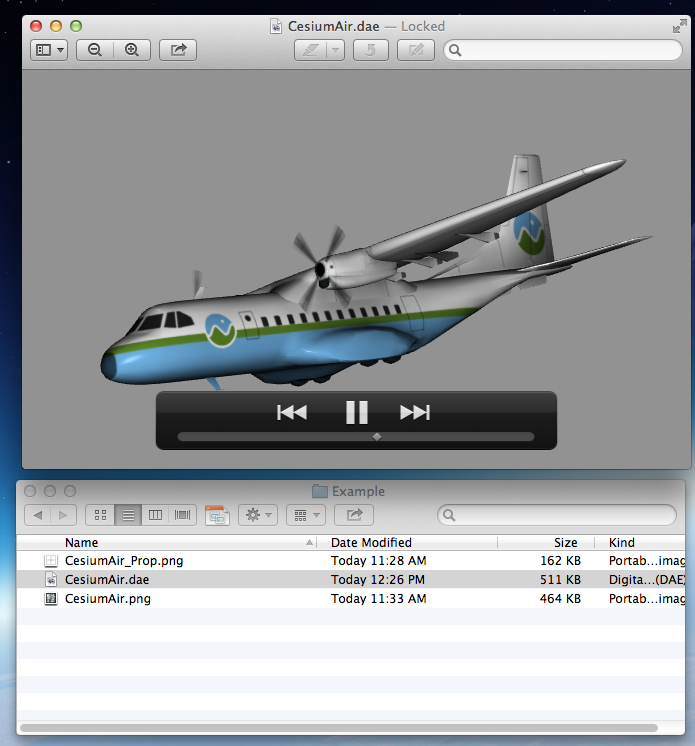
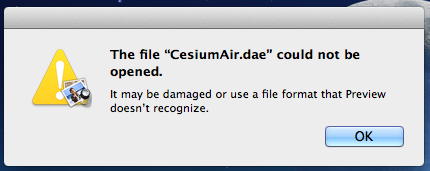
If the COLLADA file is invalid, Preview will display an error. This usually indicates a bug in the COLLADA exporter used to create the COLLADA file.
To troubleshoot this, install Xcode, then right-click the .dae file and select Open With -> Xcode.
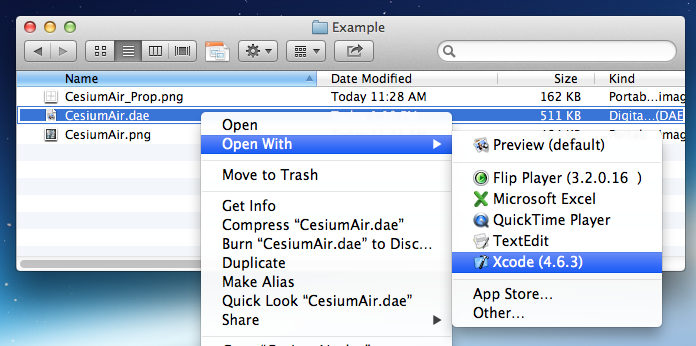
Xcode displays the model similarly to Preview but with more features, such as the ability to select individual nodes. Xcode also implements many workarounds for invalid COLLADA files, so it can often load and preview COLLADA files that Preview cannot. If the model loads in Xcode, select File -> Save to save the model with the workarounds applied, and it should then load in Preview.
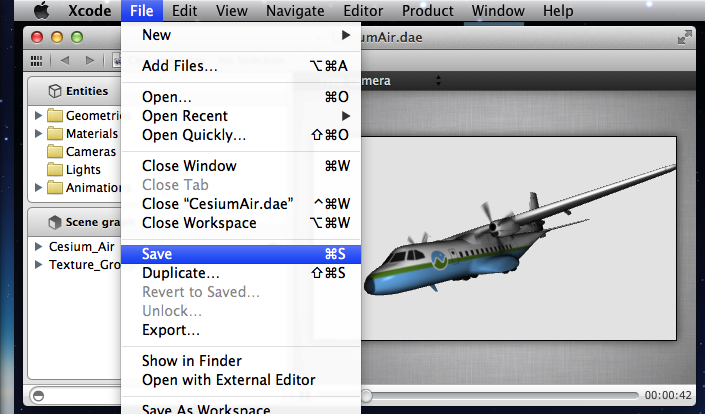
If it still doesn’t load in Preview, then there is an issue with the COLLADA exporter. Make sure you have the latest version of the modeling tool, and try the tips in this article. If it still doesn’t work, file a bug with the modeling tool (not Cesium). It’s also worth trying to export as .fbx or another format, then importing into another modeling tool with a better COLLADA exporter.
Troubleshooting on Windows
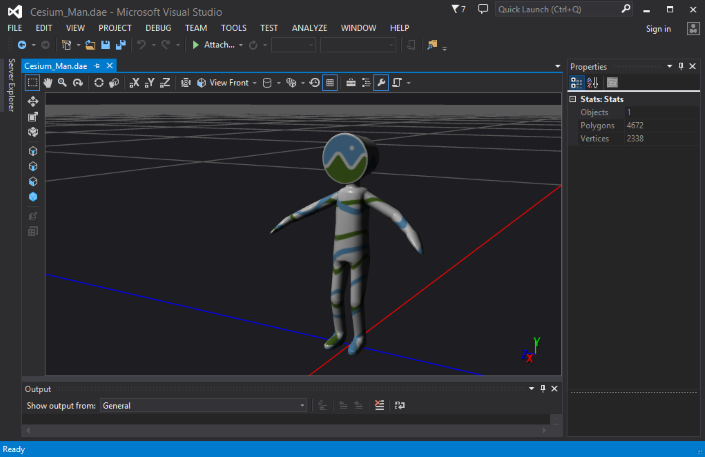
On Windows, Visual Studio 2013 includes a model editor in the free Community Edition that can load COLLADA models. To determine whether the COLLADA file was exported correctly, drag the .dae file into Visual Studio and it should load. If it doesn’t load, this usually indicates a bug in the COLLADA exporter. Make sure you have the latest version of the modeling tool, and try the tips in this article. If it still doesn’t work, file a bug with the modeling tool (not Cesium). It’s also worth trying to export as .fbx or another format, then importing into another modeling tool with a better COLLADA exporter.
If you don’t have Visual Studio, Autodesk has a WebGL viewer that allows drag and drop and doesn’t require login. The viewer does not support animations. If the model has images, upload a zip package containing the .dae and image files.
Troubleshooting in Cesium
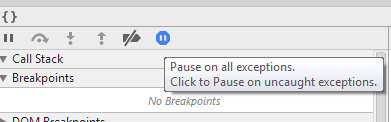
Once we have a valid COLLADA file, run it through the COLLADA-to-glTF converter, then try loading it into Cesium. If it doesn’t load into Cesium or displays incorrectly, there is a bug in either the converter or Cesium. To get more details, open the browser’s developer tools (Ctrl-Shift-I in Chrome) and enable Pause on all exceptions (in Chrome’s Sources tab), then reload the Cesium application.
Post a message to the Cesium Forum, and we can usually provide a workaround until a fix is available. In your post, please include:
- The original COLLADA and converted glTF files. We understand that not everyone can share their models, but if you can, it greatly improves our ability to help.
- The browser’s console window and any exceptions thrown when loading the model, for example:

Resources
Check out the 3D Models example in Sandcastle and the reference documentation for Model and ModelAnimationCollection.
Cesium Chinese community QQ group: 807482793
Cesium Chinese website: http://cesiumcn.org/ | Fast domestic access: http://cesium.coinidea.com/