Cesium Chinese website: http://cesiumcn.org/ | Domestic fast access: http://cesium.coinidea.com/
What is a Particle System?
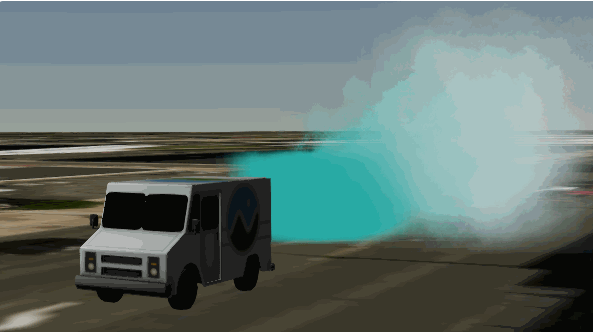
A particle system is a graphics technique that simulates complex physical effects. Particle systems are collections of small images that, when viewed together, form a more complex “fuzzy” object such as fire, smoke, weather, or fireworks. These complex effects can be controlled by specifying the behavior of individual particles using properties such as initial position, velocity, and lifetime.
Particle system effects are very common in movies and video games. For example, to represent damage to an aircraft, a technical artist might use a particle system to represent an explosion on the aircraft’s engine, and then render a different particle system to represent the smoke trail as the aircraft crashes.
Particle System Basics
Take a look at the code for a basic particle system below:
| |

The code above creates a ParticleSystem, a parameterized object that controls the appearance and behavior of individual Particle objects over time. Particles are generated by a particle emitter, have a position and type, live for a certain period of time, and then die.
Some of these properties are dynamic. Notice that instead of using the available monochrome property scale, there is a startScale and endScale. These allow you to specify that the particle size transitions between the start and end scales over the course of the particle’s lifetime. startColor and endColor work similarly.
Other ways to affect visual output include maximum and minimum properties. For each variable with maximum and minimum inputs, the actual value of that variable on the particle will be randomly assigned between the maximum and minimum inputs and will remain static at that value throughout the particle’s lifetime. For example, using minimum speed and maximum speed as bounds for the speed randomly selected for each particle. Properties that allow changes like this include imageSize, speed, life, and particleLife.
Emitters
When a particle is born, its initial position and velocity vector are controlled by the ParticleEmitter. The emitter will generate a number of particles per second, specified by the emissionRate parameter, initialized with a random velocity based on the emitter type.
Cesium has a variety of particle emitters that you can use out of the box.
BoxEmitter
BoxEmitter initializes particles at randomly sampled positions within a box and directs them out of one of the six box faces. It accepts a Cartesian3 parameter that specifies the width, height, and depth dimensions of the box.
| |

CircleEmitter
CircleEmitter initializes particles at randomly sampled positions within a circle in the direction of the emitter’s up axis. It accepts a float parameter that specifies the radius of the circle.
| |

If no emitter is specified, CircleEmitter will be used as the default emitter.
ConeEmitter
ConeEmitter initializes particles at the tip of a cone and directs them away from the cone at random angles. It takes a float parameter that specifies the angle of the cone. The cone is oriented along the emitter’s up axis.
| |

SphereEmitter
SphereEmitter initializes particles at randomly sampled positions within a sphere and directs them outward from the center of the sphere. It takes a float parameter that specifies the radius of the sphere.
| |
Configuring Particle Systems
Particle Emission Rate
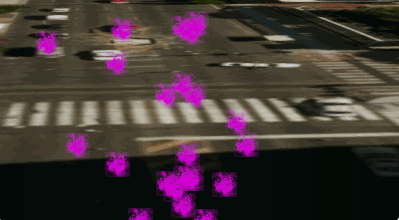
emissionRate controls how many particles are emitted per second, which changes the density of particles in the system. Specify a set of bursts to emit particles at specified times (as shown in the animation above). This adds variety or explosiveness to the particle system.
Add this property to your particleSystem:
| |
At the given times, these bursts will emit between the minimum and maximum number of particles.
Life of the Particle and Life of the System
By default, the particle system will run forever. To make the particle system run for a set duration, use lifetime to specify the duration in seconds and set loop to false.
| |
Setting particleLife to 5.0 will give every particle in the system that particleLife value. To randomize the output of each particle, use the variables minimumParticleLife and maximumArticleLife.
| |
Styling Particles
Color
Particles are styled with textures specified by image and color, which can change over the particle’s lifetime to create dynamic effects. The following code makes smoke particles transition from green to white.
| |
Size
The size of a particle is controlled by imageSize. To randomize the size, use minimumImageSize.x and maximumImageSize.x to control the width (in pixels), and minimumImageSize.y and maximumImageSize.y to control the height (in pixels). The following code creates square particles between 30 and 60 pixels:
| |
The size of particles can be adjusted over their lifetime using the startScale and endScale properties to make particles grow or shrink over time.
| |
Speed
Speed is controlled by speed or minimumSpeed and maximumSpeed.
| |
UpdateCallback
Particle systems can be further customized by applying an update function. It acts as a manual updater for each particle for effects such as gravity, wind, or color changes.
The particle system has an updateCallback that modifies particle properties during the simulation. This function takes the particle and the simulation time step. Most physics-based effects will modify the velocity vector to change direction or speed. Here is an example that makes particles react to gravity:
| |
This function computes the gravity vector and uses gravitational acceleration to change the particle’s velocity. Set gravity as the updateFunction of the particle system:
| |
Positioning
Particle systems are positioned using two Matrix4 transformation matrices:
- modelMatrix: Transforms the particle system from model to world coordinates.
- emitterModelMatrix: Transforms the particle system emitter within the particle system’s local coordinate system.
You can use just one of these transformation matrices and leave the other as the identity matrix, but we provide both for convenience. To practice creating matrices, let’s position the particle emitter relative to another entity.
Create an entity for our particle system. Open the Hello World Sandcastle example and add the following code to add a milk truck model to the viewer:
| |
We want to add a smoke effect coming from the back of the truck. Create a model matrix that will position the particle system and orient it the same as the milk truck entity.
| |
This places the particle system at the center of the truck. To position it at the back of the truck, we can create a matrix with a translation.
| |
Now, add the particle system:
| |
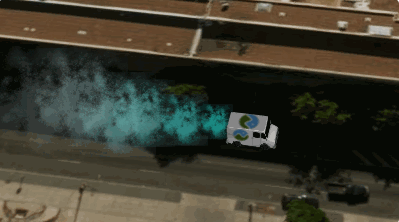
Also note that we can update the model or emitter matrices over time. For example, if we want to animate the emitter position on the truck, we can modify the emitterModelMatrix while keeping the modelMatrix unchanged.
To see the complete example, visit the Particle System demo.
Learn More
For achieving cooler effects with particle systems using more advanced techniques, see the Particle Systems - More Effects tutorial.

For more example code, see:
Cesium Chinese website QQ group: 807482793
Cesium Chinese website: http://cesiumcn.org/ | Domestic fast access: http://cesium.coinidea.com/