Cesium Chinese Website: http://cesiumcn.org/ | Fast Access in China: http://cesium.coinidea.com/
To learn the basics of particle systems, see the Particle Systems Getting Started tutorial.
Weather
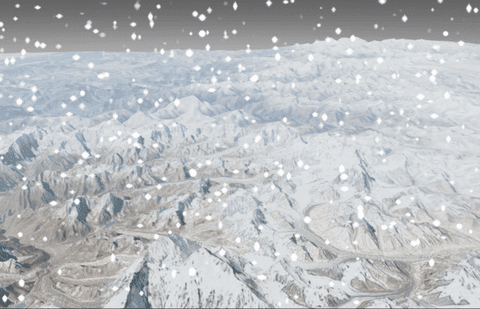
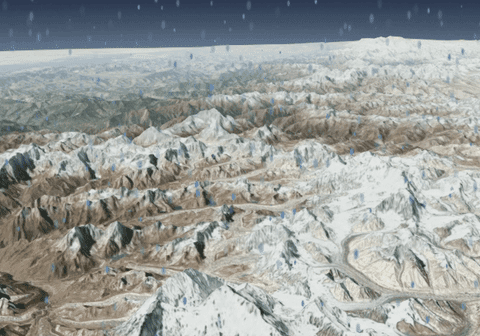
Setup
To generate a snow effect, first add a snowflake image for each particle, and then define the particle’s movement behavior and other dynamic elements in the updateParticle function.
The Images
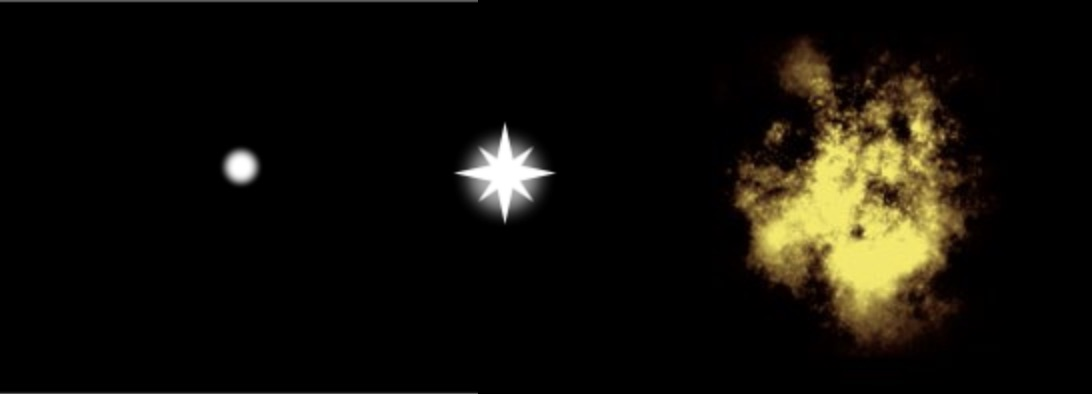
Three images are used in this tutorial. The left one is the rain particle; the middle image is the snow particle; the right image is used for the fire effect.
The Update Function
The update function is used to define particle movement, arrangement, and visualization. It modifies the particle’s color, imageSize, and particleLife. We can even modify them based on the distance to the camera (as described below), imported models, or the distance to the Earth itself.
Here is our update function for snow:
 1
 2
 3
 4
 5
 6
 7
 8
 9
10
11
12
13
14
15
16
| // snow
var snowGravityVector = new Cesium.Cartesian3();
var snowUpdate = function(particle, dt) {
Cesium.Cartesian3.normalize(particle.position, snowGravityVector);
Cesium.Cartesian3.multiplyByScalar(snowGravityVector,
Cesium.Math.randomBetween(-30.0, -300.0),
snowGravityVector);
particle.velocity = Cesium.Cartesian3.add(particle.velocity, snowGravityVector, particle.velocity);
var distance = Cesium.Cartesian3.distance(scene.camera.position, particle.position);
if (distance > (snowRadius)) {
particle.endColor.alpha = 0.0;
} else {
particle.endColor.alpha = snowSystem.endColor.alpha / (distance / snowRadius + 0.1);
}
};
|
The first part of the function makes the particles fall as if affected by gravity. The update function also contains a distance check so that particles fade away when they are far from the camera.
Additional Weather Effects
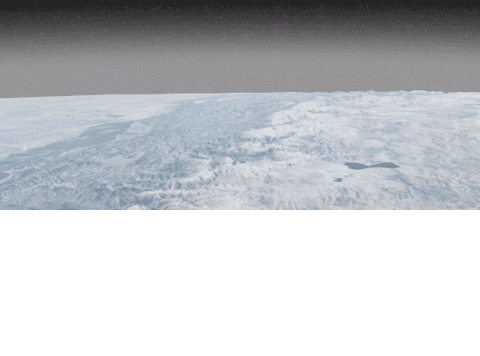
Use fog and atmospheric effects to enhance the visualization and match the type of weather we are trying to replicate.
hueShift changes the color along the color spectrum, saturationShift changes the degree to which the actual color versus black and white is needed for the visual, and brightnessShift changes how vivid the color is.
Fog density changes the opacity between the ground cover on the Earth and the fog color. The fog’s minimumBrightness is used to darken the fog.
1
2
3
4
5
6
7
| // snow
scene.skyAtmosphere.hueShift = -0.8;
scene.skyAtmosphere.saturationShift = -0.7;
scene.skyAtmosphere.brightnessShift = -0.33;
scene.fog.density = 0.001;
scene.fog.minimumBrightness = 0.8;
|
The Systems

Snow
The snow system uses the snowflake_particle image and uses minimumImageSize and maximumImageSize to randomly create snowflakes within that range.
 1
 2
 3
 4
 5
 6
 7
 8
 9
10
11
12
13
14
15
16
17
18
19
20
| var snowParticleSize = scene.drawingBufferWidth / 100.0;
var snowRadius = 100000.0;
var snowSystem = new Cesium.ParticleSystem({
modelMatrix : new Cesium.Matrix4.fromTranslation(scene.camera.position),
minimumSpeed : -1.0,
maximumSpeed : 0.0,
lifetime : 15.0,
emitter : new Cesium.SphereEmitter(snowRadius),
startScale : 0.5,
endScale : 1.0,
image : "../../SampleData/snowflake_particle.png",
emissionRate : 7000.0,
startColor : Cesium.Color.WHITE.withAlpha(0.0),
endColor : Cesium.Color.WHITE.withAlpha(1.0),
minimumImageSize : new Cartesian2(snowParticleSize, snowParticleSize),
maximumImageSize : new Cartesian2(snowParticleSize * 2.0, snowParticleSize * 2.0),
updateCallback : snowUpdate
});
scene.primitives.add(snowSystem);
|
Rain
The rain system uses circular_particle.png for raindrops. imageSize is used to vertically stretch the image, giving the rain a slender appearance.
 1
 2
 3
 4
 5
 6
 7
 8
 9
10
11
12
13
14
15
| rainSystem = new Cesium.ParticleSystem({
modelMatrix : new Cesium.Matrix4.fromTranslation(scene.camera.position),
speed : -1.0,
lifetime : 15.0,
emitter : new Cesium.SphereEmitter(rainRadius),
startScale : 1.0,
endScale : 0.0,
image : "../../SampleData/circular_particle.png",
emissionRate : 9000.0,
startColor :new Cesium.Color(0.27, 0.5, 0.70, 0.0),
endColor : new Cesium.Color(0.27, 0.5, 0.70, 0.98),
imageSize : new Cesium.Cartesian2(rainParticleSize, rainParticleSize * 2),
updateCallback : rainUpdate
});
scene.primitives.add(rainSystem);
|
The rain update function is slightly different because rain falls much faster than snow.
1
2
3
4
5
6
7
| // rain
rainGravityScratch = Cesium.Cartesian3.normalize(particle.position, rainGravityScratch);
rainGravityScratch = Cesium.Cartesian3.multiplyByScalar(rainGravityScratch,
-1050.0,
rainGravityScratch);
particle.position = Cesium.Cartesian3.add(particle.position, rainGravityScratch, particle.position);
|
To make the environment match the atmosphere of the scene, modify the atmosphere and fog to match the rain. The code below creates a dark blue sky covered in haze.
1
2
3
4
5
6
7
| // rain
scene.skyAtmosphere.hueShift = -0.97;
scene.skyAtmosphere.saturationShift = 0.25;
scene.skyAtmosphere.brightnessShift = -0.4;
scene.fog.density = 0.00025;
scene.fog.minimumBrightness = 0.01;
|
For additional help, visit the Sandcastle example for both snow and rain.
Comet and Rocket Tails
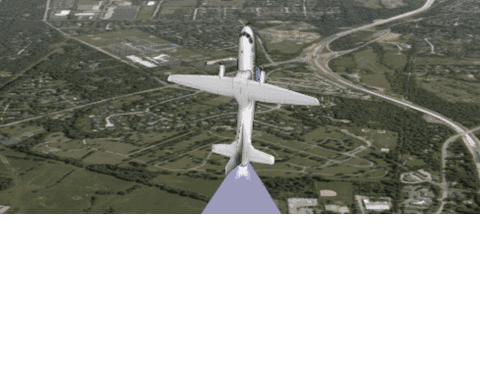
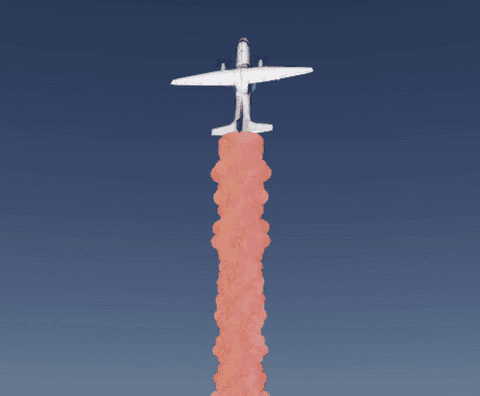
Using Multiple Particle Systems
To create comet and rocket tails, we need multiple particle systems. Each position on the particle ring created by this example is a completely independent particle system. This allows us to control the direction of the system’s movement more uniformly. A simple way to visualize this effect is to limit cometOptions.numberOfSystems to 2 and have cometOptions.colorOptions include only two colors, as shown in the image below.
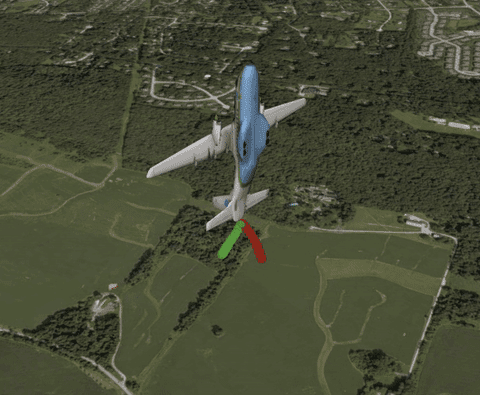
To simplify different collections of systems, create arrays to carry the independent systems associated with the comet and those associated with the rocket example.
1
2
| var rocketSystems = [];
var cometSystems = [];
|
Create two different options for the objects: one for the Comet version and another for the Rocket version. This makes the initial number of systems, offset values, etc. different for the two systems, giving them different appearances.
 1
 2
 3
 4
 5
 6
 7
 8
 9
10
11
12
13
14
15
16
17
18
19
20
21
22
23
24
25
26
27
28
29
30
31
32
33
34
35
36
37
38
39
40
41
42
43
44
45
46
47
48
49
50
51
52
| var cometOptions = {
numberOfSystems : 100.0,
iterationOffset : 0.003,
cartographicStep : 0.0000001,
baseRadius : 0.0005,
colorOptions : [{
red : 0.6,
green : 0.6,
blue : 0.6,
alpha : 1.0
}, {
red : 0.6,
green : 0.6,
blue : 0.9,
alpha : 0.9
}, {
red : 0.5,
green : 0.5,
blue : 0.7,
alpha : 0.5
}]
};
var rocketOptions = {
numberOfSystems : 50.0,
iterationOffset : 0.1,
cartographicStep : 0.000001,
baseRadius : 0.0005,
colorOptions : [{
minimumRed : 1.0,
green : 0.5,
minimumBlue : 0.05,
alpha : 1.0
}, {
red : 0.9,
minimumGreen : 0.6,
minimumBlue : 0.01,
alpha : 1.0
}, {
red : 0.8,
green : 0.05,
minimumBlue : 0.09,
alpha : 1.0
}, {
minimumRed : 1,
minimumGreen : 0.05,
blue : 0.09,
alpha : 1.0
}]
};
|
colorOptions is an array of colors for random visuals. Each system starts from a specific color rather than having a set color geometry, depending on the system currently being created. In the example below, i represents the current iteration number.
1
| var color = Cesium.Color.fromRandom(options.colorOptions[i % options.colorOptions.length]);
|
Setup
Use the function below as initialization for each system:
 1
 2
 3
 4
 5
 6
 7
 8
 9
10
11
12
13
14
15
16
17
18
19
20
21
22
23
24
25
26
27
28
29
| function createParticleSystems(options, systemsArray) {
var length = options.numberOfSystems;
for (var i = 0; i < length; ++i) {
scratchAngleForOffset = Math.PI * 2.0 * i / options.numberOfSystems;
scratchOffset.x += options.baseRadius * Math.cos(scratchAngleForOffset);
scratchOffset.y += options.baseRadius * Math.sin(scratchAngleForOffset);
var emitterModelMatrix = Cesium.Matrix4.fromTranslation(scratchOffset, matrix4Scratch);
var color = Cesium.Color.fromRandom(options.colorOptions[i % options.colorOptions.length]);
var force = forceFunction(options, i);
var item = viewer.scene.primitives.add(new Cesium.ParticleSystem({
image : getImage(),
startColor : color,
endColor : color.withAlpha(0.0),
particleLife : 3.5,
speed : 0.00005,
imageSize : new Cesium.Cartesian2(15.0, 15.0),
emissionRate : 30.0,
emitter : new Cesium.CircleEmitter(0.1),
bursts : [ ],
lifetime : 0.1,
forces : force,
modelMatrix : particlesModelMatrix,
emitterModelMatrix : emitterModelMatrix
}));
systemsArray.push(item);
}
}
|
Since both tail versions are similar, the same createParticleSystems function can be used to create either one. Pass in CometOptions or RocketOptions as the options parameter to create different effects.
Create the Particle Image from Scratch
Instead of loading an image from a URL, the getImage function creates the image using an HTML canvas. This makes image creation more flexible.
 1
 2
 3
 4
 5
 6
 7
 8
 9
10
11
12
13
14
15
| var particleCanvas;
function getImage() {
if (!Cesium.defined(particleCanvas)) {
particleCanvas = document.createElement('canvas');
particleCanvas.width = 20;
particleCanvas.height = 20;
var context2D = particleCanvas.getContext('2d');
context2D.beginPath();
context2D.arc(8, 8, 8, 0, Cesium.Math.TWO_PI, true);
context2D.closePath();
context2D.fillStyle = 'rgb(255, 255, 255)';
context2D.fill();
}
return particleCanvas;
}
|
The Force Function
Below is our updateCallback function:
 1
 2
 3
 4
 5
 6
 7
 8
 9
10
11
12
13
14
15
16
17
18
19
20
21
22
23
| var scratchCartesian3 = new Cesium.Cartesian3();
var scratchCartographic = new Cesium.Cartographic();
var forceFunction = function(options, iteration) {
var iterationOffset = iteration;
var func = function(particle) {
scratchCartesian3 = Cesium.Cartesian3.normalize(particle.position, new Cesium.Cartesian3());
scratchCartesian3 = Cesium.Cartesian3.multiplyByScalar(scratchCartesian3, -1.0, scratchCartesian3);
particle.position = Cesium.Cartesian3.add(particle.position, scratchCartesian3, particle.position);
scratchCartographic = Cesium.Cartographic.fromCartesian(particle.position,
Cesium.Ellipsoid.WGS84,
scratchCartographic);
var angle = Cesium.Math.PI * 2.0 * iterationOffset / options.numberOfSystems;
iterationOffset += options.iterationOffset;
scratchCartographic.longitude += Math.cos(angle) * options.cartographicStep;
scratchCartographic.latitude += Math.sin(angle) * options.cartographicStep;
particle.position = Cesium.Cartographic.toCartesian(scratchCartographic);
};
return func;
};
|
Note that forceFunction returns a function. The returned func is the actual updateCallback function. For each iteration, the update function creates a different rotation offset based on the angle and iterationOffset. A smaller iteration offset only slightly adjusts the angle, allowing the radius to steadily increase as the system continues, as shown in the comet example. A larger iteration offset changes the angle more quickly; this creates a tighter, more erratic cylindrical output, as shown in the rocket example.
This tutorial uses sine and cosine functions for circular effects. For other effects, try making shapes such as a Lissajous curve, Gibbs phenomenon, or square wave.
Relative Position
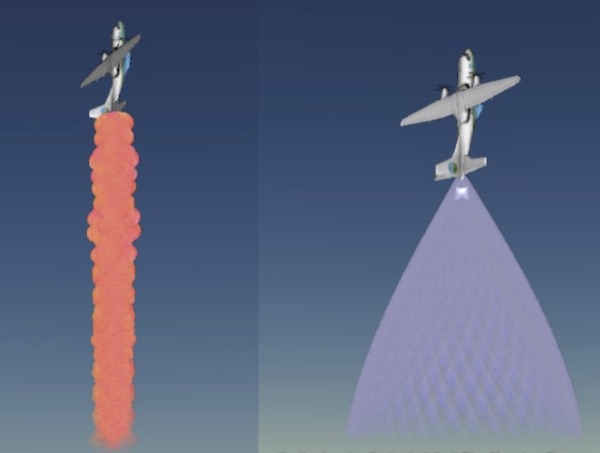
Use modelMatrix to position the particle system at the appropriate location behind the plane. Because these systems are vertical, we need a slight offset using the particleOffset value. As shown in the createParticleSystems function, the emitterModelMatrix offset for each system is calculated based on the iteration.
1
2
3
4
5
6
7
8
| // positioning the plane
var planePosition = Cesium.Cartesian3.fromDegrees(-75.59777, 40.03883, 800.0);
var particlesOffset = new Cesium.Cartesian3(-8.950115473940969, 34.852766731753945, -30.235411095432937);
// creating the particles model matrix
var transl = Cesium.Matrix4.fromTranslation(particlesOffset, new Cesium.Matrix4());
var translPosition = Cesium.Matrix4.fromTranslation(planePosition, new Cesium.Matrix4());
var particlesModelMatrix = Cesium.Matrix4.multiplyTransformation(translPosition, transl, new Cesium.Matrix4());
|
Resources
For additional help, visit the Sandcastle example for both tails examples.
More example code:
Cesium Chinese Website QQ Group: 807482793
Cesium Chinese Website: http://cesiumcn.org/ | Fast Access in China: http://cesium.coinidea.com/