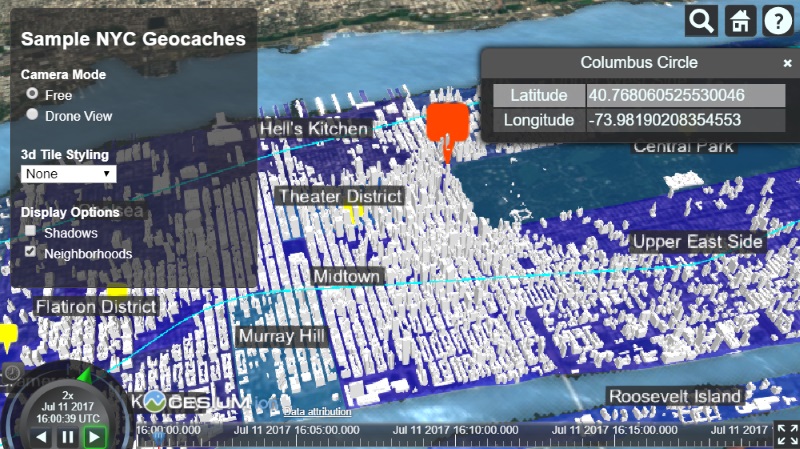
Finally, let’s add some mouse interaction. To improve the visibility of our geocache markers, we can change their style to highlight them when the user hovers over a marker.
To achieve this, we’ll use picking, a Cesium feature that returns data from the 3D scene given a pixel position on the viewer canvas.
There are several types of picking:
- Scene.pick : Returns an object containing the primitive at the given window position.
- Scene.drillPick : Returns a list of objects containing all primitives at the given window position.
- Globe.pick : Returns the intersection point of a given ray with the terrain.
Here are some examples of picking operations:
Since we want to trigger our highlight effect on hover, we first need to create a mouse action handler. For this, we’ll use ScreenSpaceEventHandler, a set of handlers that trigger specified functions on user input actions. ScreenSpaceEventHandler.setInputAction() listens for a user action type ScreenSpaceEventType and runs a specific function, passing the user action as a parameter. Here, we’ll pass a function that takes movement as input:
| |
Next, let’s write our highlight function. The handler will pass in mouse movement, from which we can extract a window position to use with pick(). If the pick returns a billboard object, we know we’re hovering over a marker. Then, using what we know about Entity styling, we can apply a highlight style.
| |
This successfully triggers the highlight style change on the markers. However, you’ll notice that when we move the cursor away, the markers remain highlighted. We can fix this by tracking the last marker and restoring its original style.
Here is the complete function with marker highlighting and unhighlighting working:
| |
That’s it! We’ve now successfully added a mouse movement handler and hover behavior for marker entities.
Cesium Chinese Community QQ Group: 807482793
Original link: http://cesiumcn.org/topic/164.html | China fast access: http://cesium.coinidea.com/topic/164.html