The foundation of any Cesium application is the Viewer. The Viewer is an interactive 3D digital globe container (box) with various features. To create a Viewer, simply bindg it to a div element with the id “cesiumContainer” in HTML.
| |
After using the code above, you can see the basic digital globe shown in the image below:
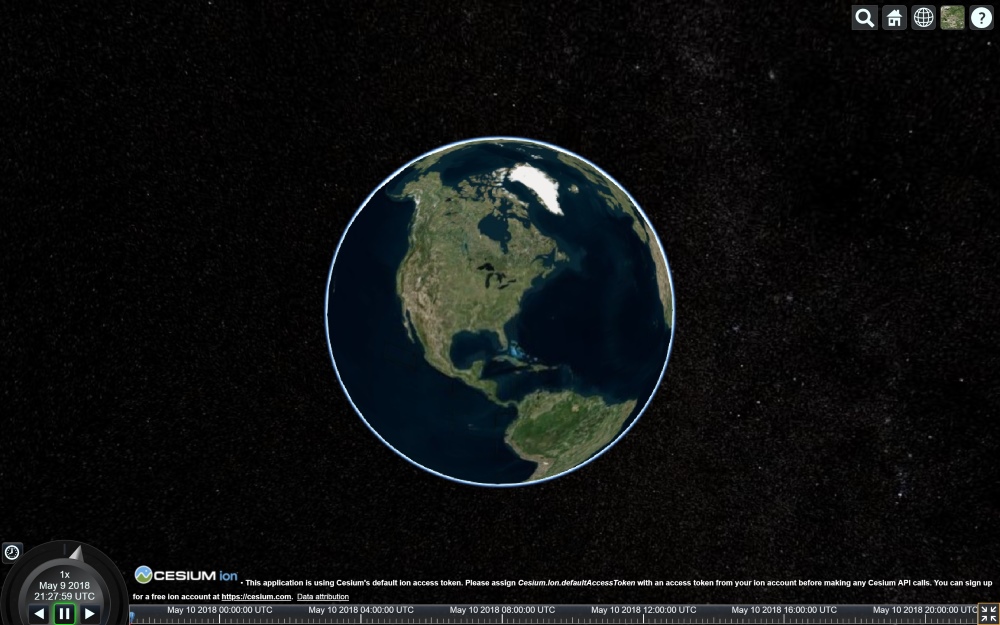
By default, the scene supports mouse (desktop) and touch (mobile device) interaction. You can control the camera to navigate the digital globe in the following ways:
- Left click and drag - Pans the camera over the surface of the globe.
- Right click and drag - Zooms the camera in and out.
- Middle wheel scrolling - Also zooms the camera in and out.
- Middle click and drag - Rotates the camera around the point on the surface of the globe.
The default Viewer comes with several useful widgets:
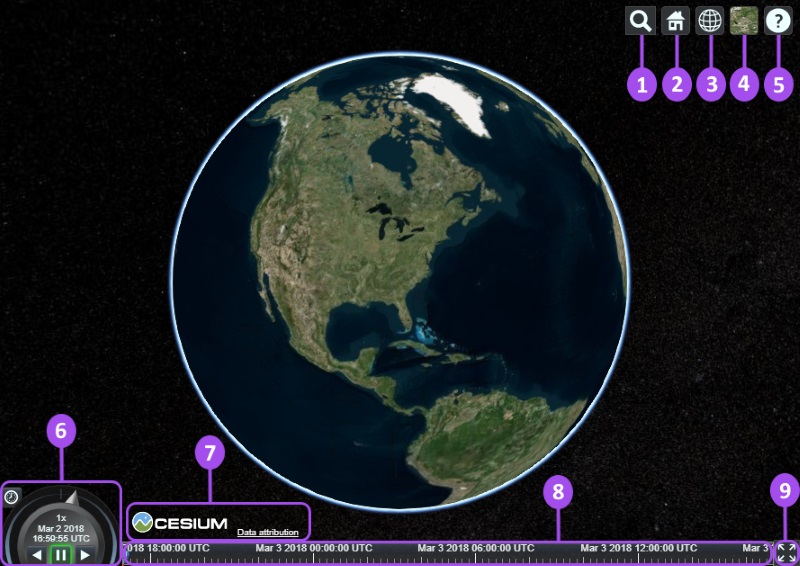
- Geocoder : A location search tool that flies the camera to queried location. Uses Bing Maps data by default.
- HomeButton : Flies the viewer back to a default view.
- SceneModePicker : Switches between 3D, 2D and Columbus View (CV) modes.
- BaseLayerPicker : Chooses the imagery and terrain to display on the globe.
- NavigationHelpButton : Displays the default camera controls.
- Animation : Controls the play speed for view animation.
- CreditsDisplay : Displays data attributions. Almost always required!
- Timeline : Indicates current time and allows users to jump to a specific time using the scrubber.
- FullscreenButton : Makes the Viewer fullscreen.
We can configure the Viewer widgets through code by adding/removing related components via configuration parameters when initializing the Viewer. The following code creates a Viewer configured without the selection indicator, base layer picker, or scene mode picker components:
| |
For the complete Viewer configuration, please visit: https://cesiumjs.org/Cesium/Build/Documentation/Viewer.html.
Cesium Chinese Community QQ Group: 807482793
Original link: http://cesiumcn.org/topic/152.html | China fast access: http://cesium.coinidea.com/topic/152.html