Cesium Chinese Website: http://cesiumcn.org/ | China fast access: http://cesium.coinidea.com/
Cesium supports rendering and adding high-resolution imagery (map) layers from several standard services. Layers can be ordered and blended together. The brightness, contrast, gamma, hue, and saturation of each layer can be dynamically changed. This tutorial introduces the concept of imagery layers and the related Cesium APIs.
Quick Start
Let’s skip the details for now and write some code to add imagery layers. Open the Hello World example in Sandcastle. This example creates a Viewer widget, which renders Bing Maps by default. We can specify a different base layer by providing additional parameters to the Viewer constructor. Let’s use a layer from Esri ArcGIS MapServer:
| |
After modifying the example, press F8 to run:
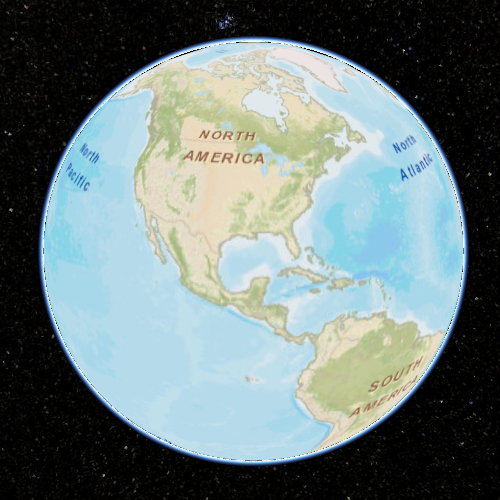
We can scroll the mouse wheel to zoom in and out to see the actual imagery streaming in action.
Next, add another layer: NASA Black Marble imagery based on Tile Map Service (TMS):
| |
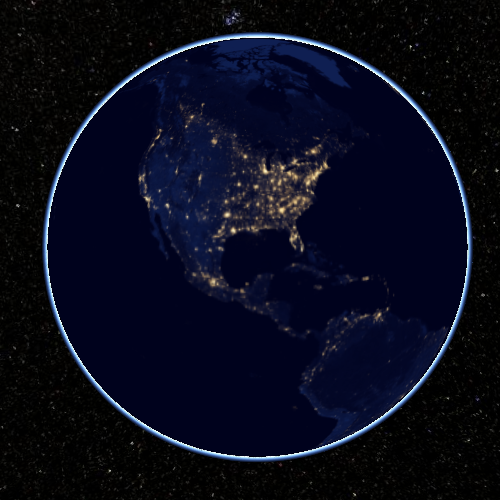
Because the Black Marble layer was added last and covers the entire globe, it covers the Esri layer. We could move the Black Marble layer to the bottom with layers.lower(blackMarble);, but to better understand the relationship between these two layers, let’s blend it with the Esri layer:
| |
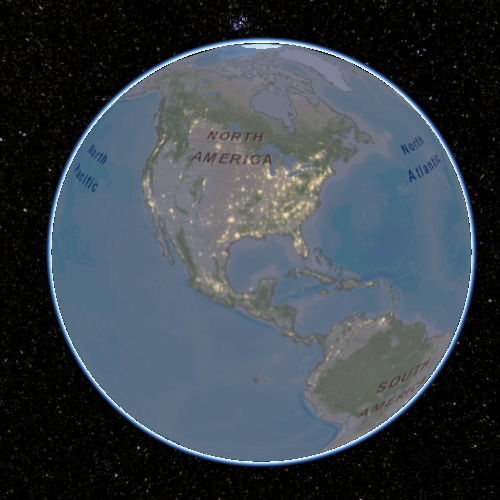
Next, increase the brightness of the lights:
| |
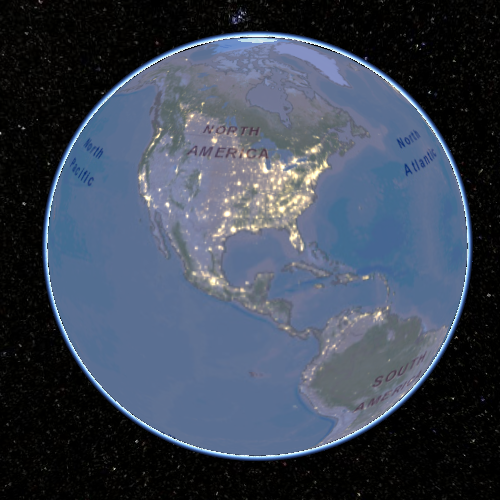
Finally, add a single image as a third layer for a specific extent:
| |
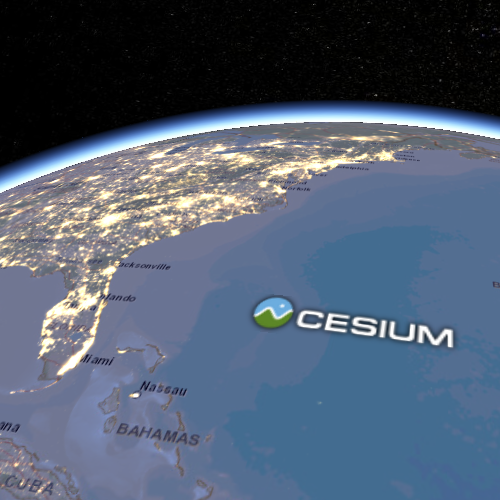
Complete code:
| |
View the complete example in Sandcastle.
Existing Imagery Layers
The ion Assets tab in Sandcastle contains imagery layer applications hosted by Cesium ion, which can be used in Cesium applications by adding just a few lines of code.
ImageryProvider
High-resolution imagery like the first two layers used above is too large to fit in memory or even on a single disk, so the imagery is divided into smaller images called tiles that can be streamed to the client based on the view. Cesium supports requesting tiles using ImageryProvider with several standards. Most ImageryProviders use REST interfaces over HTTP to request tiles. ImageryProviders differ based on the format and organization of the requests. Cesium includes the following built-in ImageryProviders:
- Web Map Service (WMS) - An OGC standard for requesting map tiles from distributed geospatial databases. In Cesium, see WebMapServiceImageryProvider.
- Tile Map Service (TMS) - A REST interface for accessing tiles. Tiles can be generated using MapTiler or GDAL2Tiles. See TileMapServiceImageryProvider.
- OpenGIS Web Map Tile Service (WMTS) - An OGC standard for serving pre-rendered georeferenced tiles over the internet. In Cesium, see WebMapTileServiceImageryProvider.
- OpenStreetMap - Access OpenStreetMap tiles or any Slippy map tiles. There are several ways to host these tiles. In Cesium, see createOpenStreetMapImageryProvider.
- Bing Maps - Use the Bing Maps REST Services to access tiles. Create Bing Maps keys at https://www.bingmapsportal.com/. In Cesium, see BingMapsImageryProvider.
- Esri ArcGIS MapServer - Use the ArcGIS Server REST API to access tiles on an ArcGIS MapServer. In Cesium, see ArcGisMapServerImageryProvider.
- Google Earth Enterprise - Provides access to imagery stored in Google Earth Enterprise servers. In Cesium, see GoogleEarthImageryProvider.
- Mapbox - Use the Mapbox API to access tiles. Create an account and provide an access token. In Cesium, see MapboxImageryProvider.
- Standard image files - Create imagery layers from images. In Cesium, see SingleTileImageryProvider.
- Custom tiling schemes - Using UrlTemplateImageryProvider, we can connect to a wide variety of imagery sources by using URL templates. For example, a TMS URL template is //cesiumjs.org/tilesets/imagery/naturalearthii/{z}/{x}/{reverseY}.jpg.
- Tile coordinates - Shows how the globe is divided into tiles in a particular tiling scheme by drawing a border around each tile and labeling it with its level, X, and Y coordinates.
We can access other imagery services by implementing the ImageryProvider interface. If you do so and think it’s generally useful, please contribute it to Cesium for everyone’s benefit.
See the reference documentation to learn how to construct a specific imagery provider. Let’s look at SingleTileImageryProvider since many imagery providers share its constructor properties:
- url - The URL of the image. Like many imagery providers, this is the only required property. In other imagery providers, this URL points to the server or the root URL of the service.
- extent - Optional. The longitude/latitude rectangle that the image should cover. By default, it covers the entire globe.
- credit - Optional. A string credit for the data source, displayed on the canvas. Some imagery providers, such as BingMapsImageryProvider and ArcGIS Server REST API, can retrieve credits or logos directly from their services.
- proxy - Optional. A proxy for requesting the service, which can enable cross-origin resource sharing.
Cross-Origin Resource Sharing
For security reasons, today’s web browsers work hard to prevent JavaScript code from reading image pixels from different sites. In particular, if a WebGL application like Cesium accesses images from a different hostname or port and the server doesn’t explicitly allow the images to be used this way, using those images as textures is prohibited. The server indicates that images don’t contain confidential information and that it’s safe for other sites to read their pixels by including Cross-Origin Resource Sharing (CORS) headers in the HTTP response.
Unfortunately, not all imagery services support CORS. For those that don’t, a proxy server with the same origin as the website hosting Cesium must be used. When using such a proxy, for the web browser and Cesium client, the tiles appear as though they come from the same origin as the Cesium-based website. To use a proxy with an imagery provider, use the proxy property when constructing the imagery provider. Cesium includes a simple proxy written in Node.js for development purposes.
| |
If you’re hosting public imagery, we encourage enabling CORS as described in this article rather than using a proxy.
ImageryProvider vs. Layers
So far, we haven’t explicitly distinguished between ImageryProvider and layers. An ImageryProvider requests imagery using a specific service, while a layer represents the displayed imagery from an ImageryProvider. The code:
| |
is shorthand for:
| |
We typically construct an imagery provider only to create a layer, then we use its properties such as show, alpha, brightness, and contrast. See ImageryLayer. Decoupling imagery providers from layers makes it easy to add new imagery providers.
Like the layers variable in the examples above, the layer collection determines the drawing order of layers. Layers are drawn from bottom to top in the order they were added. The layer collection is operated on using functions such as add, remove, and get, like any other collection in Cesium. Additionally, layers can be reordered using raise, raiseToTop, lower, and lowerToBottom. See ImageryLayerCollection.
Resources
Imagery layers examples from Sandcastle:
- Imagery Layers - Code samples from this tutorial
- Imagery Layers Manipulation - Layers from multiple data sources with independent transparency adjustment
- Imagery Adjustment - Adjust layer brightness, contrast, gamma, hue, and saturation
Additional reference documentation:
Cesium Chinese Community QQ Group: 807482793
Cesium Chinese Website: http://cesiumcn.org/ | China fast access: http://cesium.coinidea.com/