Cesium Chinese Website: http://cesiumcn.org/ | Fast Access in China: http://cesium.coinidea.com/
Cesium Chinese Website: http://cesiumcn.org/ | Fast Access in China: http://cesium.coinidea.com/
IDE
Web front-end beginners often want to choose a fast, easy-to-use, and popular (I’m not sure why it needs to be popular exactly – perhaps engineers want to stay on the mainstream path in their technical journey?) IDE (Integrated Development Environment). Is an IDE important? It is both important and not important. It’s not important because: it’s just a tool, and we should focus more on requirements, logic, algorithms, and knowledge. It’s important because: it is a tool, and as the old saying goes, “A craftsman must first sharpen his tools to do his work well” – choosing the right tool often yields twice the result with half the effort.
The CesiumJS official team does not specifically recommend an IDE, but in the introductory tutorial Cesium Getting Started 2 - Setting Up the Cesium Environment and Your First Sample Program, there is this passage:
If you're already a seasoned developer, you most likely have a favorite editor or development environment; for example, most of the Cesium team uses Eclipse. If you're just starting out, a great free and open-source editor is Notepad++, which you can download from their website. Ultimately any text editor will do, so go with the one that you are most comfortable with.
As we can see, the Cesium team primarily uses the open-source Eclipse or recommends Notepad++.
Based on the author’s own experience, here is a brief list of IDEs I have used:
Notepad (built-in on Windows) or TextEdit (built-in on Mac)
Price: Free
Download: Built into the system
Startup speed: Extremely fast
Operating system: Windows/Mac
Notepad is the basic text editor. Every engineer’s (Note: from now on, the author will refer to programmers as engineers – respect yourself to earn respect) ultimate dream is to code with a plain text editor, which is cool but very difficult. You can use Notepad to read simple HTML, JavaScript, or CSS files, but it is not recommended for development at all.
If you have systematically studied computer science, you are certainly familiar with compiling, linking, building, testing, etc. (although front-end development rarely involves compiling and linking). A good IDE must provide excellent project organization. Notepad cannot do this.
Notepad++ (For Windows only)
Price: Free
Download: https://notepad-plus-plus.org/downloads/
Startup speed: Extremely fast
Operating system: Windows
An excellent ultra-lightweight editor. In addition to reading and writing HTML, JavaScript, or CSS, it supports opening folders, which provides some level of project organization. It has a large number of plugins available. Currently, as far as the author knows, it only supports the Windows environment.
Sublime Text (For Windows and Mac)
Price: Paid, closed-source
Download: www.sublimetext.com/ (Official) | http://www.sublimetext.cn/ (Chinese Community)
Startup speed: Fast
Operating system: Windows/Mac
An excellent lightweight editor. It covers almost all the features of Notepad++, while supporting both Windows and Mac. It has a massive plugin ecosystem.
New features include: GOTO ANYTHING, GOTO DEFINITION, multiple selection, command palette, customization, split editing, instant project switching, and more. Of course, you can also use the unregistered version without paying.
Eclipse/MyEclipse (For Windows and Mac)
Price: Free/Paid
Download: https://www.eclipse.org/downloads/
Startup speed: Medium/Slow
Operating system: Windows/Mac
MyEclipse is actually a paid version of Eclipse, which originally existed as a plugin. Eclipse is primarily a Java IDE that integrates Java-related plugins very well. If your back-end technology choice is Java when developing with Cesium, and you prefer using a free IDE without being too concerned about front-end and back-end separation, then Eclipse is an excellent choice.
PHPStorm/IntelliJ IDEA/WebStorm (For Windows and Mac)
Price: Paid
Download: http://www.jetbrains.com/phpstorm/ | http://www.jetbrains.com/idea/ | http://www.jetbrains.com/webstorm/
Startup speed: Slow
Operating system: Windows/Mac
As you can tell from the domain, these three IDEs come from the same company. They are excellent IDEs, but they are all quite expensive and require annual license purchases. If you have the budget, you can purchase them. They are truly outstanding. Among them, if your back-end choice is PHP when developing with Cesium, you can use PHPStorm; if your back-end choice is Java, you can use IntelliJ IDEA; if you only need to develop web front-end code, have a decent computer, and are willing to pay, you can use WebStorm. As the old saying goes: “You get what you pay for” – they are expensive because they are genuinely good.
Visual Studio Code (VSCode) (For Windows and Mac)
Price: Free
Download: https://code.visualstudio.com/
GitHub: https://github.com/Microsoft/vscode
Startup speed: Fast
Operating system: Windows/Mac
Is cheap really synonymous with low quality? Not at all. Allow me to introduce the most powerful IDE in the universe: VSCode. When I was interning at MSRA, I kept thinking that since Visual Studio could be made so excellent, could there be a similarly excellent IDE for front-end development like Visual Studio? Yes, there is – Microsoft’s own child, the free, open-source, and cross-platform Visual Studio Code. It must be said that Microsoft has done a lot in embracing open source in recent years.
Free. Built on open source. Runs everywhere.VSCode can be used not only for front-end development, but also for Java, PHP, C++, Python, and more.
Plugin marketplace: https://marketplace.visualstudio.com
VSCode is not inferior to WebStorm in any aspect. VSCode has an excellent plugin ecosystem. It has all the features a great IDE should have: IntelliSense, front-end support, auto-fix (plugins), Git/GitHub integration (GitLens), history (Local History), code checking (Code Spell Checker), themes, color schemes, and more.
Getting Started with Visual Studio Code
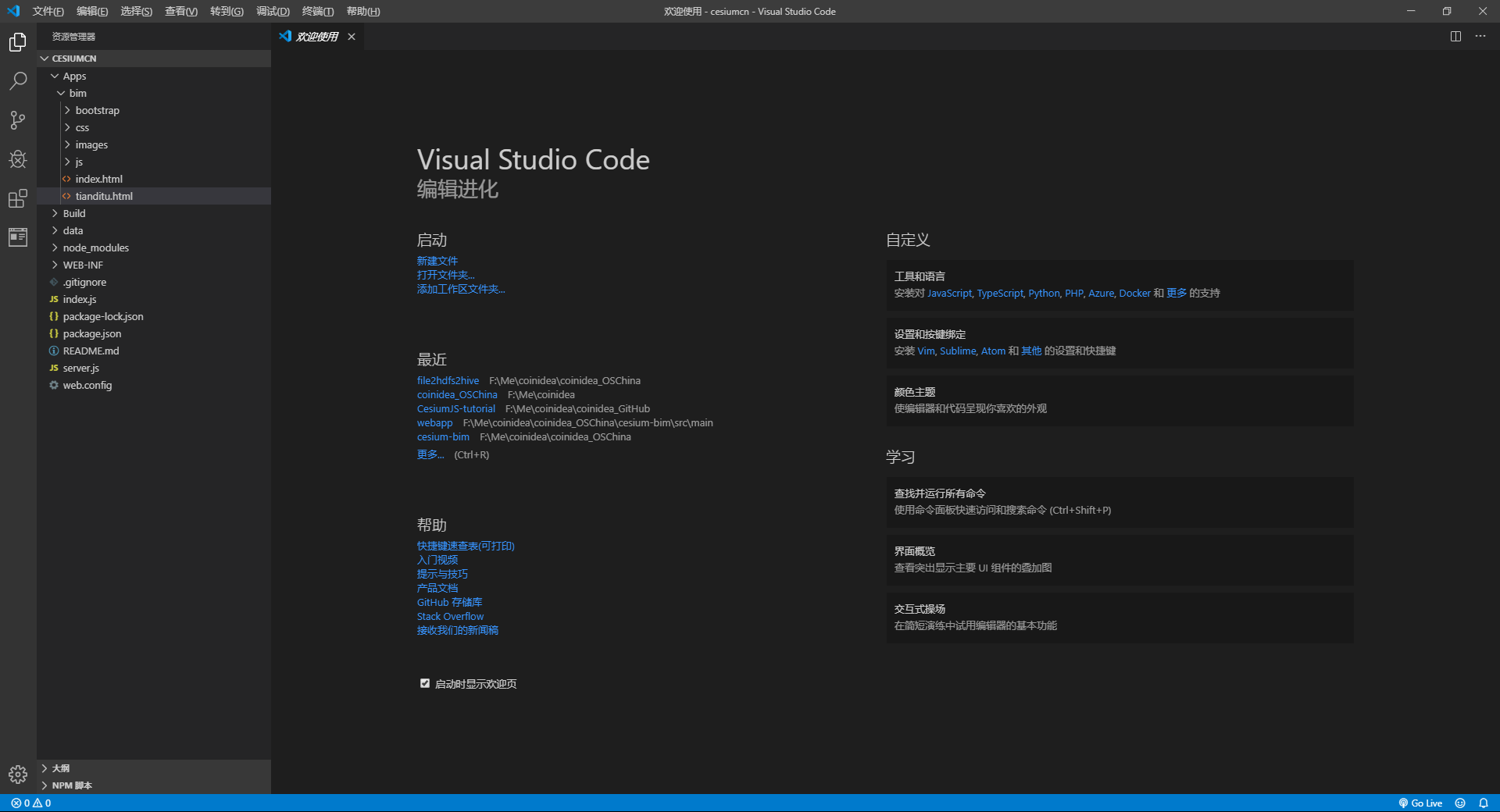
1. Command Palette
You can open it with F1 or Ctrl (Cmd on Mac) + Shift + P.
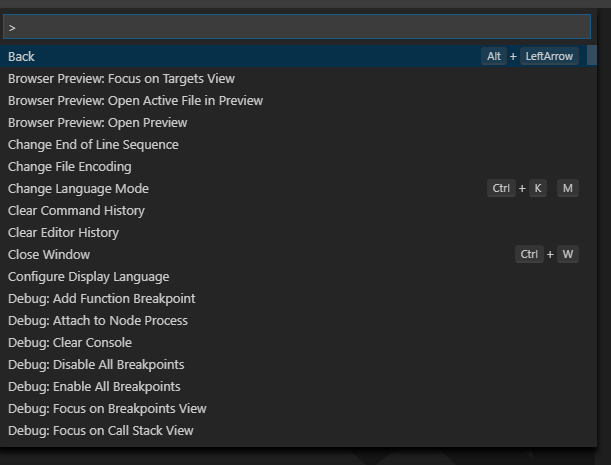
Type in the box: >Extensions: Show Installed Extensions to view installed plugins. You can also enter other commands.

2. How to Install Plugins
Installing the Live Server Plugin
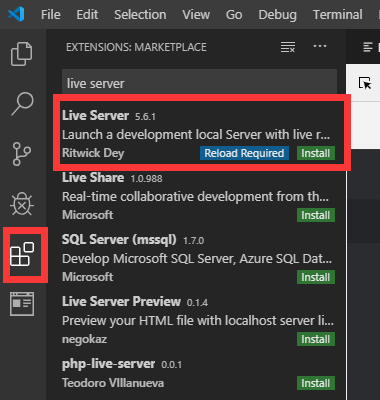
Click on Extensions in the left toolbar, type “live server” (or any other plugin name) in the search box, and you will see the first plugin named:
Live Server. Click Install to install the plugin.
What this plugin does: It has a built-in web server (Live Server) that allows you to preview your changes at any time during development without worrying too much about the web server.
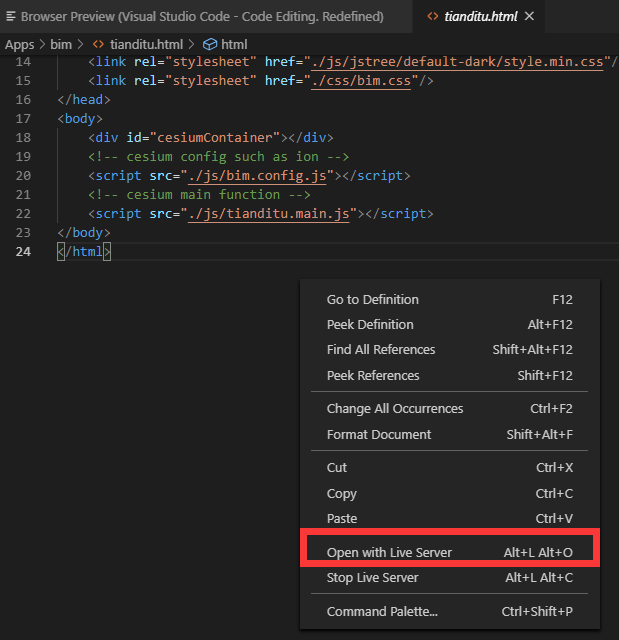
Right-click “Open With Live Server” to open the corresponding Cesium page in the browser: 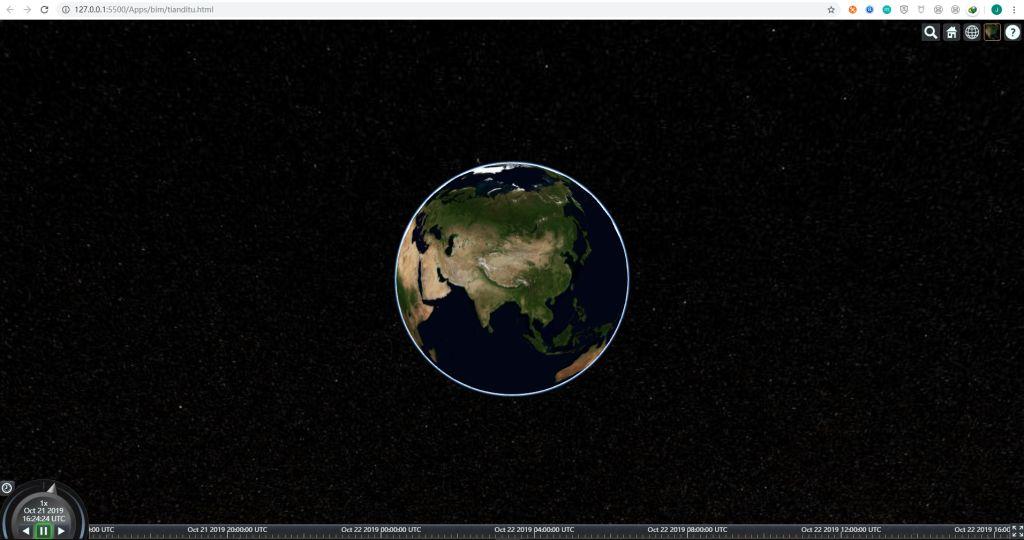
3. Commonly Used Plugins
Settings Sync: Synchronize VSCode settings
Debugger for Chrome: Debug JavaScript code running in Google Chrome from VS Code
beautify: Format code
Auto Rename Tag: Automatically synchronize modifications of opening and closing tags
guides: Code alignment guide lines
filesize: Display current file size, creation and modification time
Todo Tree: Quickly search for TODO and other comment markers
vetur/VueHelper: Vue plugins
HTML Snippets: Provides basic H5 code snippets and tags
HTML CSS Support: Provides intelligent suggestions for CSS styles when writing class attributes in HTML tags
vscode-icon: Adds corresponding icons to VSCode folder directories. (If it does not take effect, go to [File - Preferences - File Icon Theme] to re-select the setting)
path intellisense: File path auto-completion
npm intellisense: Auto-completion for package references in require statements
bracket pair colorizer: Gives brackets independent colors
tortoiseSvn: SVN plugin
auto close tag: Automatically adds HTML/XML closing tags
change-case: More naming format options for text, such as camelCase, underscore_separated, etc.
color info: Hover over a color to preview detailed color model information in the color block
css peek: Navigate to CSS class and ID definitions in stylesheets. In the HTML file right-click menu, clicking on a selector and selecting “Go to Definition” will jump to the CSS code
eslint: Checks for syntax errors in JavaScript code
html boilerplate: HTML template plugin, create an HTML file with one click
htmlHint: HTML code format checking
intelliSense for CSS class names in HTML: Provides intelligent suggestions in HTML from CSS class names found in project CSS files
JavaScript (ES6) code snippets: ES6 code snippet suggestions
The above plugins can be found and installed directly by searching in the Extensions marketplace.
4. Chinese Language Pack
Chinese (Simplified) Language Pack for Visual Studio Code – for readers who prefer Chinese, you can download and install this Simplified Chinese language pack.
After installation, restart VSCode:

There are many bloggers online who have written detailed guides on how to use Visual Studio Code. You can search for them using your preferred search engine. You can also leave a comment on the Cesium Chinese Website (http://cesium.coinidea.com/).
Cesium Chinese Website QQ Group: 807482793 Cesium Chinese Website: http://cesiumcn.org/ | Fast Access in China: http://cesium.coinidea.com/